AltoSignal Start free trial

New in AltoSignal 4.0

Your office, live, on every screen.

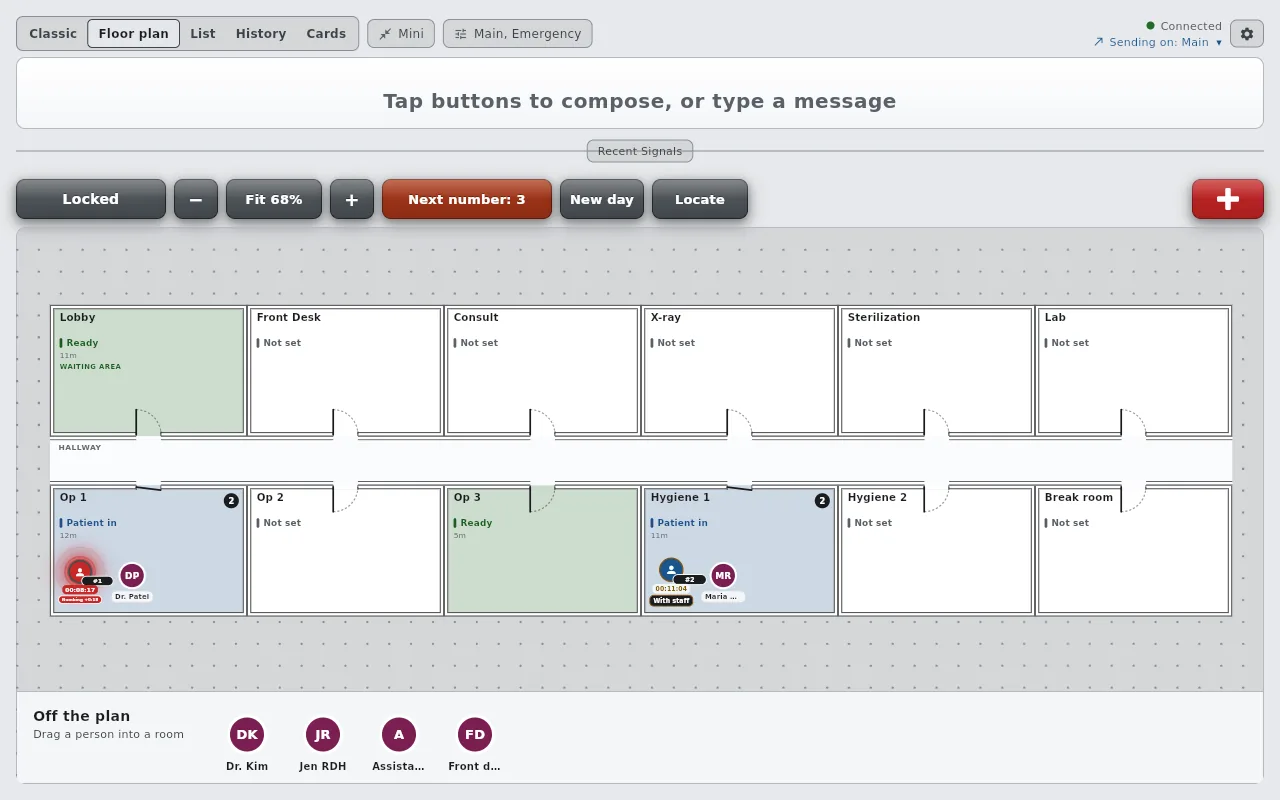
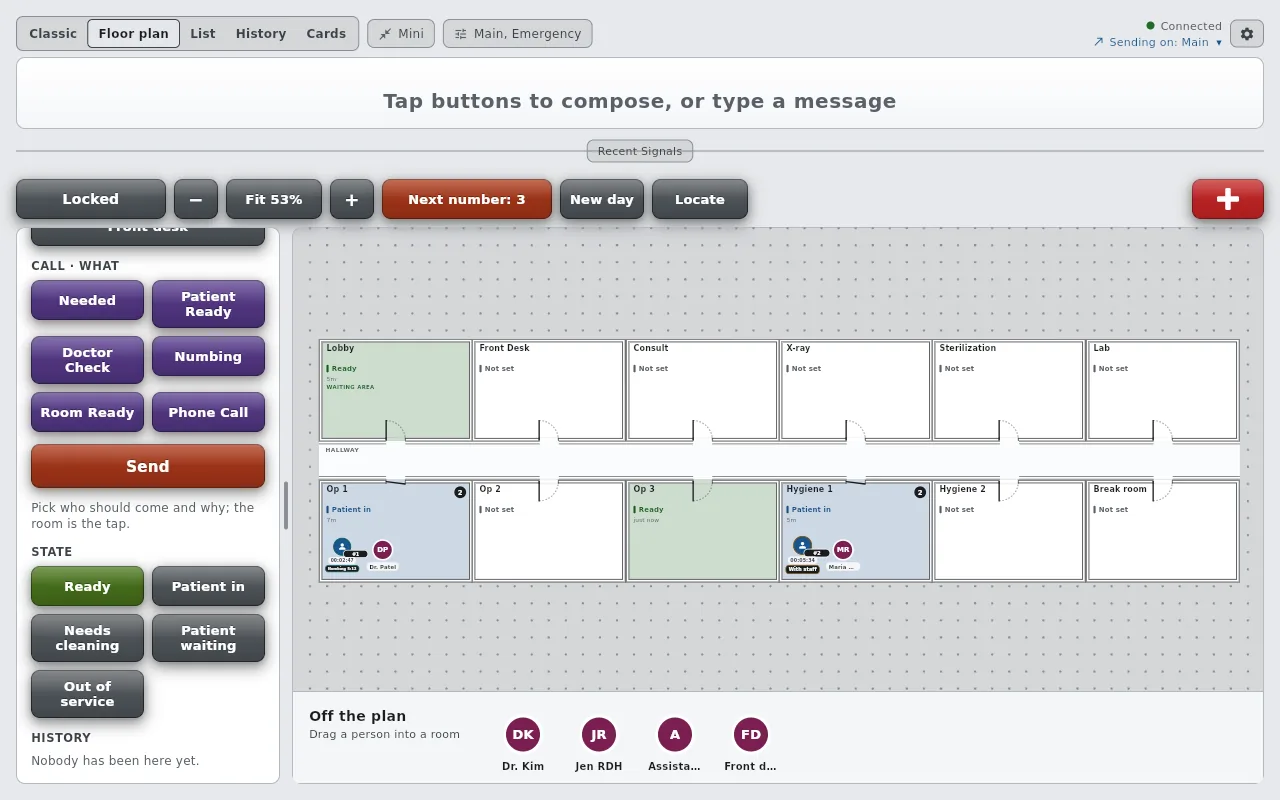
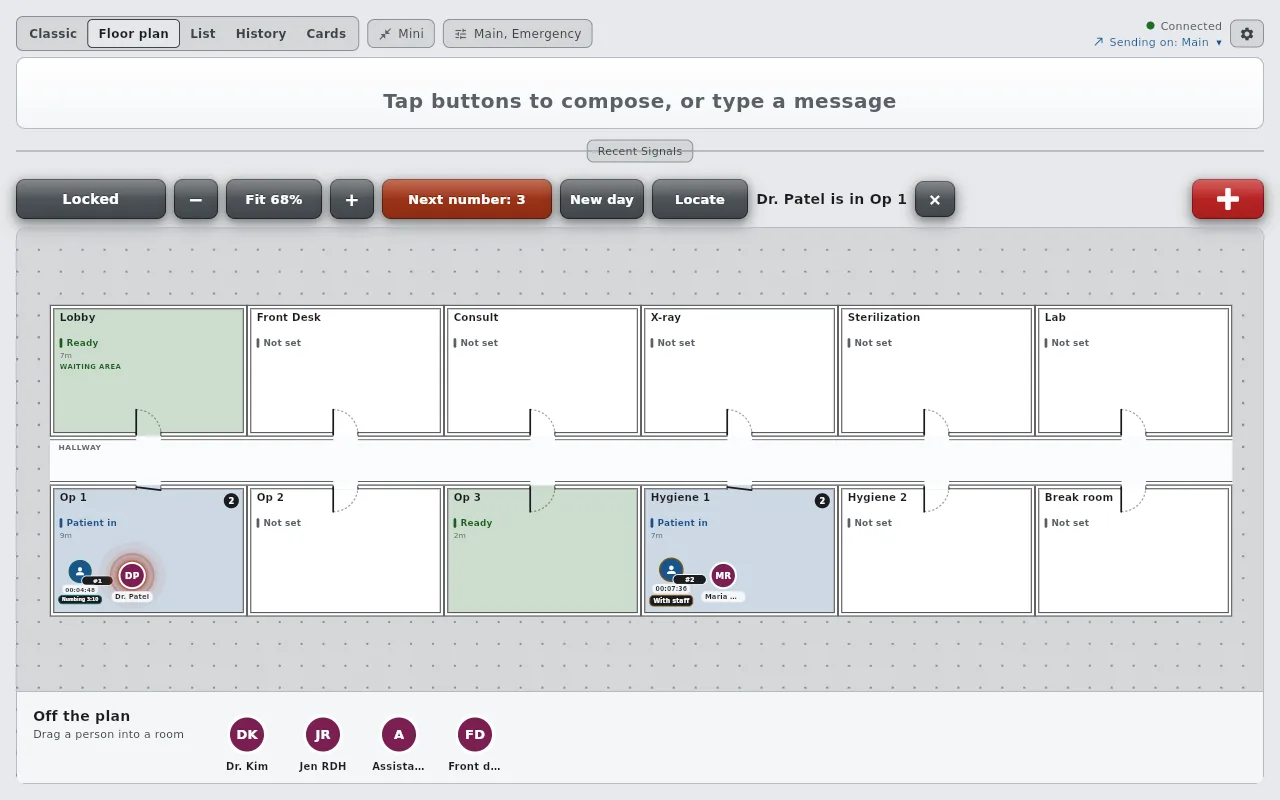
Version 4.0 draws your rooms as a floor plan and puts every patient and every staff member in them. Take a number at the front desk, drag the patient into an operatory, watch their clock and their state, and read their whole visit back afterwards. The board you already use is still one tap away.

Every screen below is a real capture from a Fire HD 10 and a Fire 7 on one account, taken minutes apart. The account belongs to an eye care practice, so the rooms read Exam Rm 1 and Dilating Room; a dental office sees its own operatories and its own words. 4.0 is live now in the browser app and the Mac and Linux downloads, and the App Store, Google Play, Amazon Appstore and Microsoft Store apps update as each store approves the release.

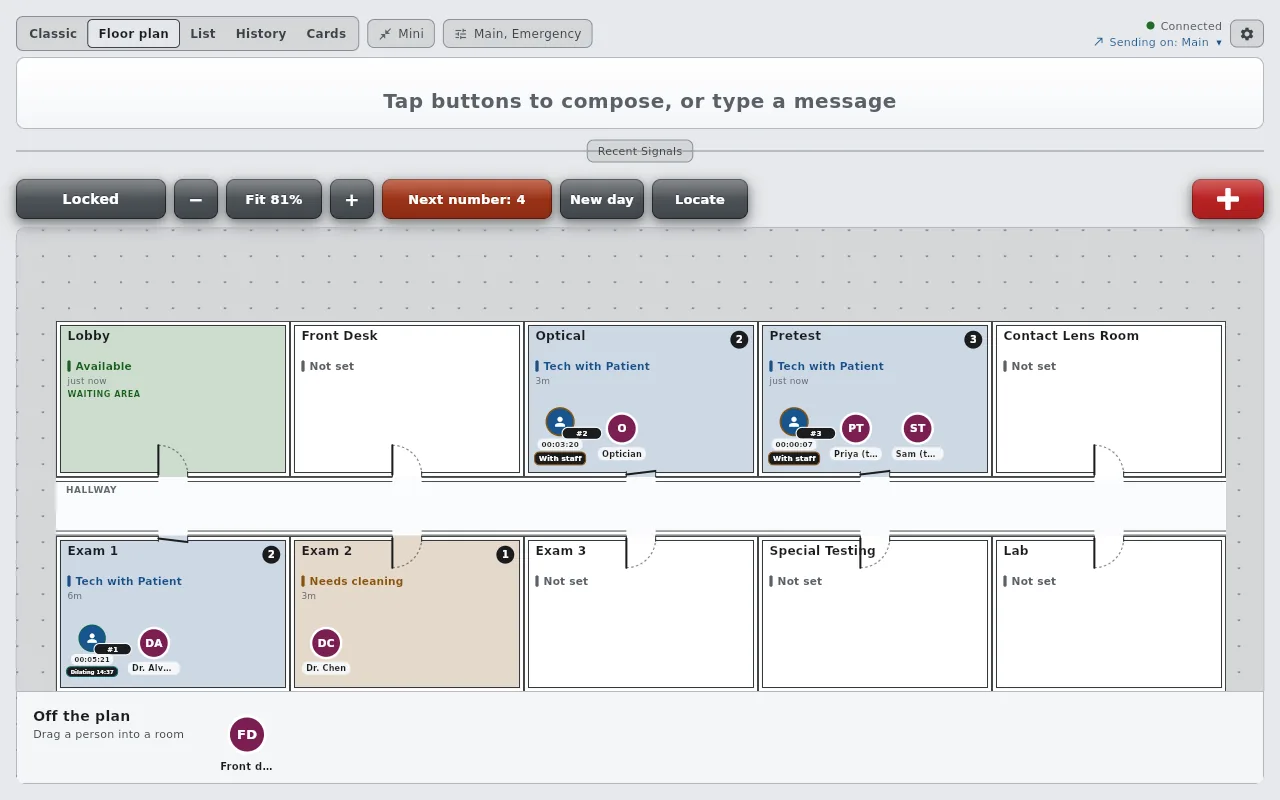
AltoSignal's Floor plan view on a Fire HD 10: twelve rooms drawn wall to wall around a hallway, with doors, a waiting area, patient icons with running clocks and staff icons in the rooms. One patient in the Dilating Room glows red because their timer has run out.
Fire HD 10, Floor plan view, a busy morning. The red glow is a timer that ran out.
The mode toggle at the top left of the main screen: Classic, Floor plan, List, History, Cards, then the channel picker reading Main, Emergency.

One screen, five ways to see the practice. The toggle at the top left switches between Classic, Floor plan, List, History and Cards. Each screen remembers its own choice, so the wall tablet can live on the plan while the front desk keeps the classic buttons. The old Live button is gone: what it opened is now the History view.

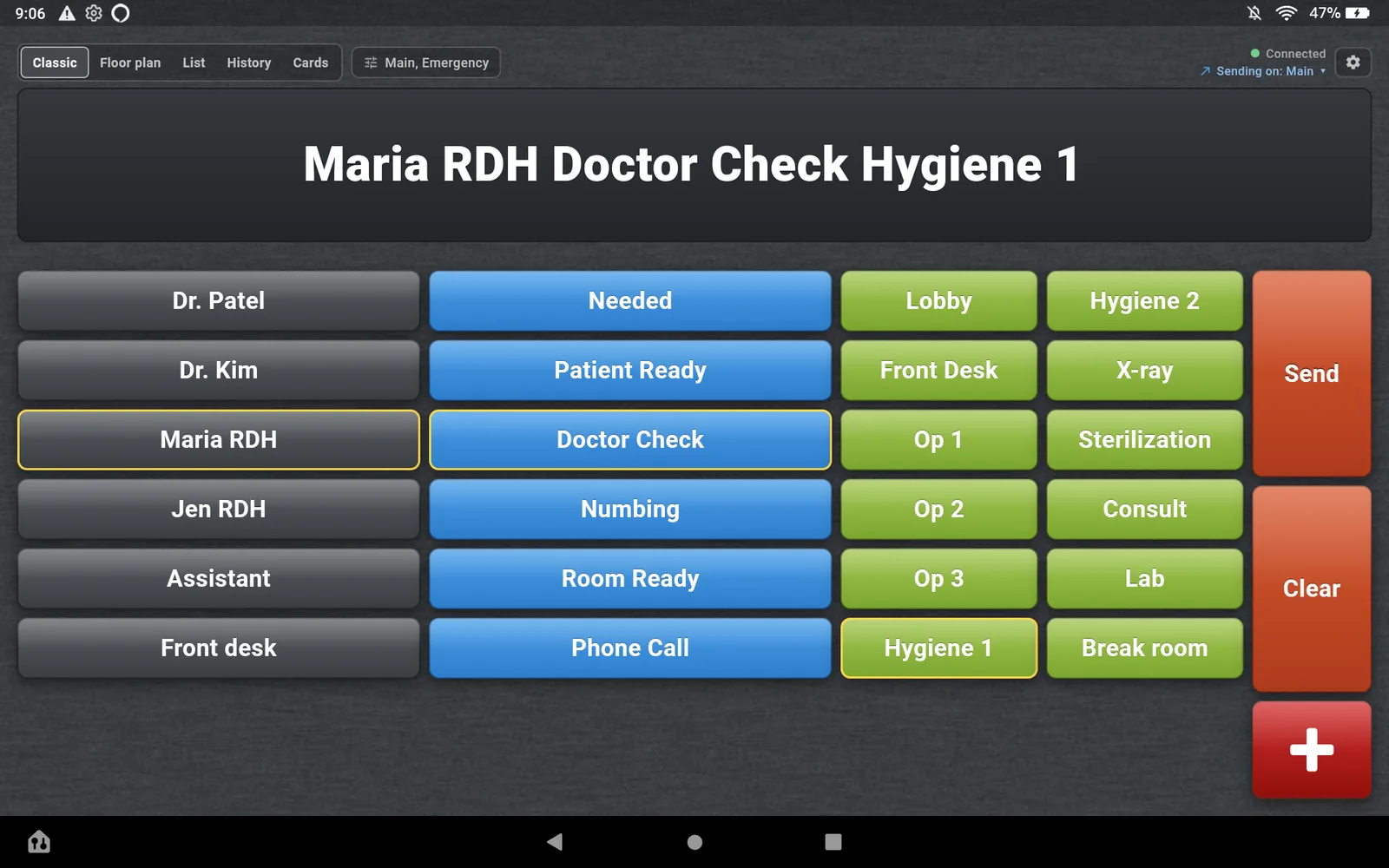
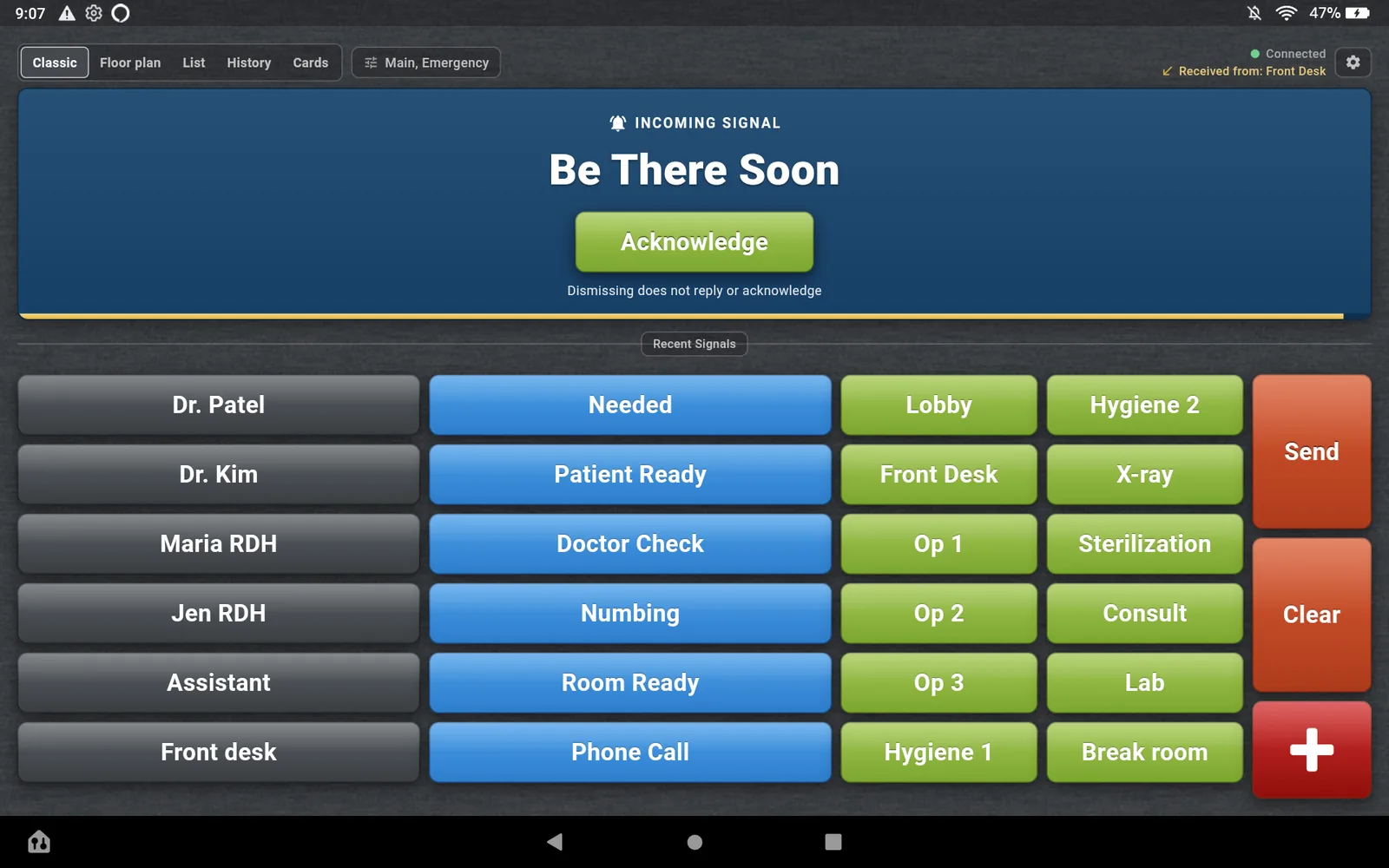
The Classic view on the Fire HD 10: three columns of buttons for who, what and where, with Send and Clear at the right and the red emergency cross below them.
Classic view. The board you know, unchanged.

01 · Classic

Nothing you learned is wasted.

Classic is the same three-column board: who, what, where, then Send. Every button, channel and quick reply you set up is kept. The only visible change is that Dismiss and the corner close are gone, and Clear does what they did.

Every other view is built on the same buttons. Your Where buttons are the rooms on the plan and the rows in the list. Your Who buttons are the people you can place in them.

The List view after pressing Move to on Patient 1: a grid of purple room chips reading Front Desk, Pretesting, Dilating Room, Exam Rm 1 to 6, Contact Lens Room and Optical, with Back to checked in. The pane at the right shows Patient 1 checked in at 21:09, Waiting, in the Lobby.
List view. Move to, on Patient 1.

02 · Take a number

A patient is a number, not a name.

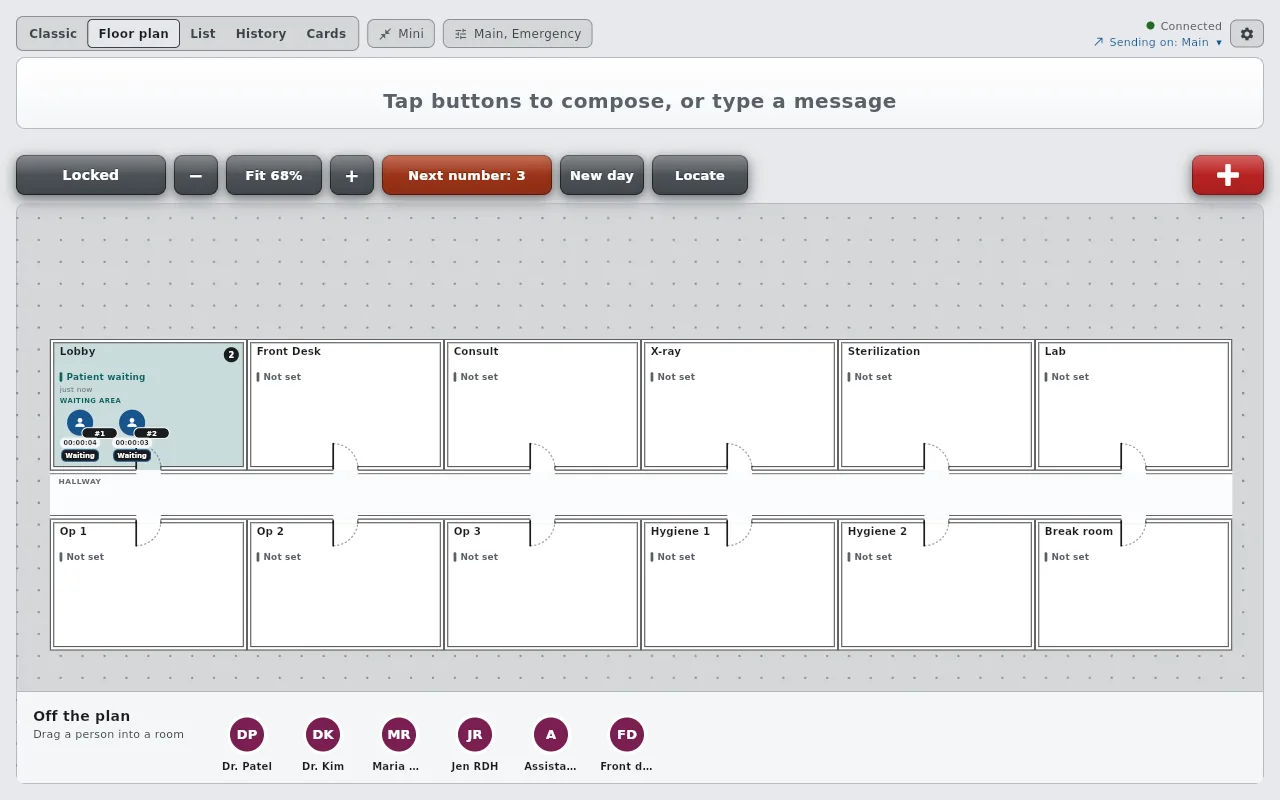
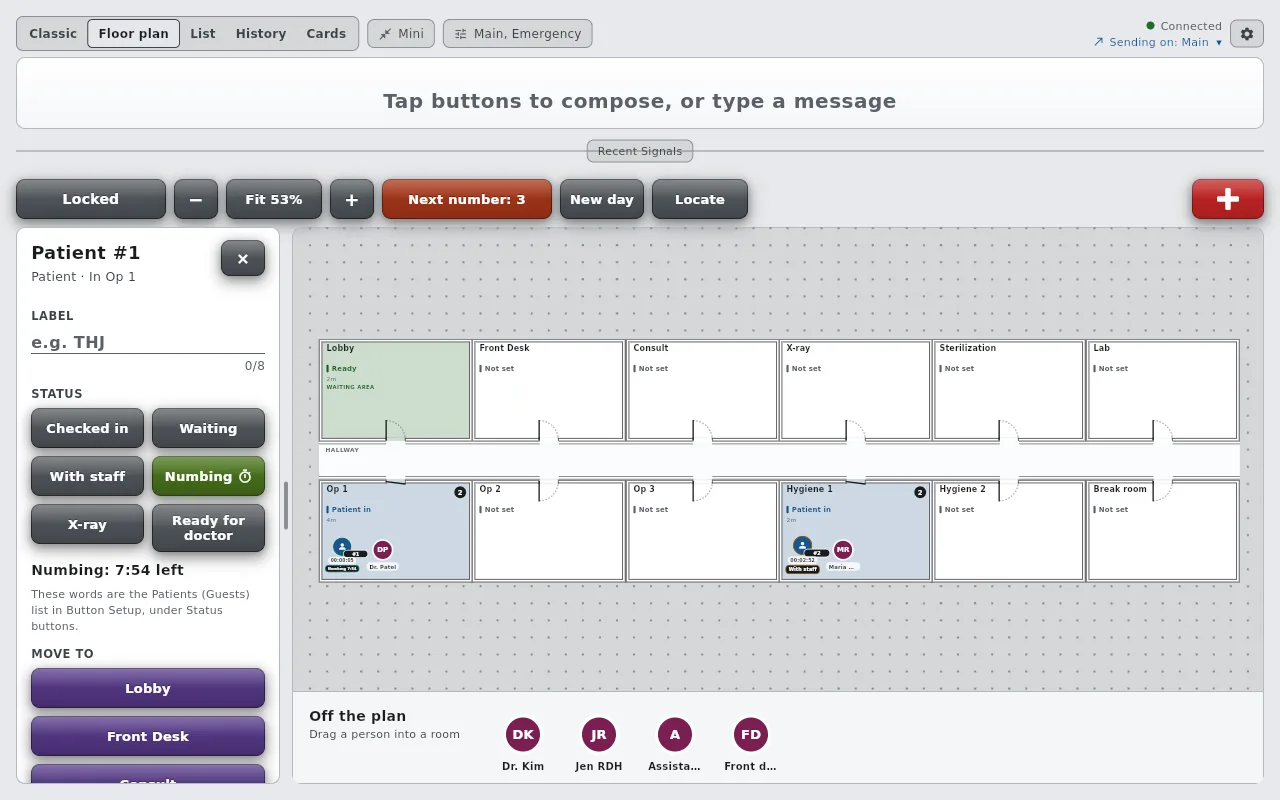
Press Next number and the next patient appears in your waiting area, Waiting, with a clock running. Add a short label such as initials if you want one. AltoSignal stores nothing else about the patient: no name, no chart, no reason for the visit.

To move them, drag the icon into a room on the plan, or press Move to on the list and pick the room. Check out ends the visit. Every screen on the account sees the move the same second.

Next number: 7 · New day · Locate

The Floor plan with Patient 3 selected. The pane at the left shows the patient's label field, status buttons Checked in, Waiting, With staff, Dilating with a timer glyph and Ready to leave, the line Dilating over by 1:42 in red, and Move to buttons.
Floor plan. Patient 3's pane, Dilating over by 1:42.

03 · States and timers

Every patient has a state, and some states have a clock.

Waiting and With staff set themselves: a patient in the waiting area is Waiting, and a patient in a room with a staff member is With staff. The rest are one tap in the pane. Ready to leave stays until you change it.

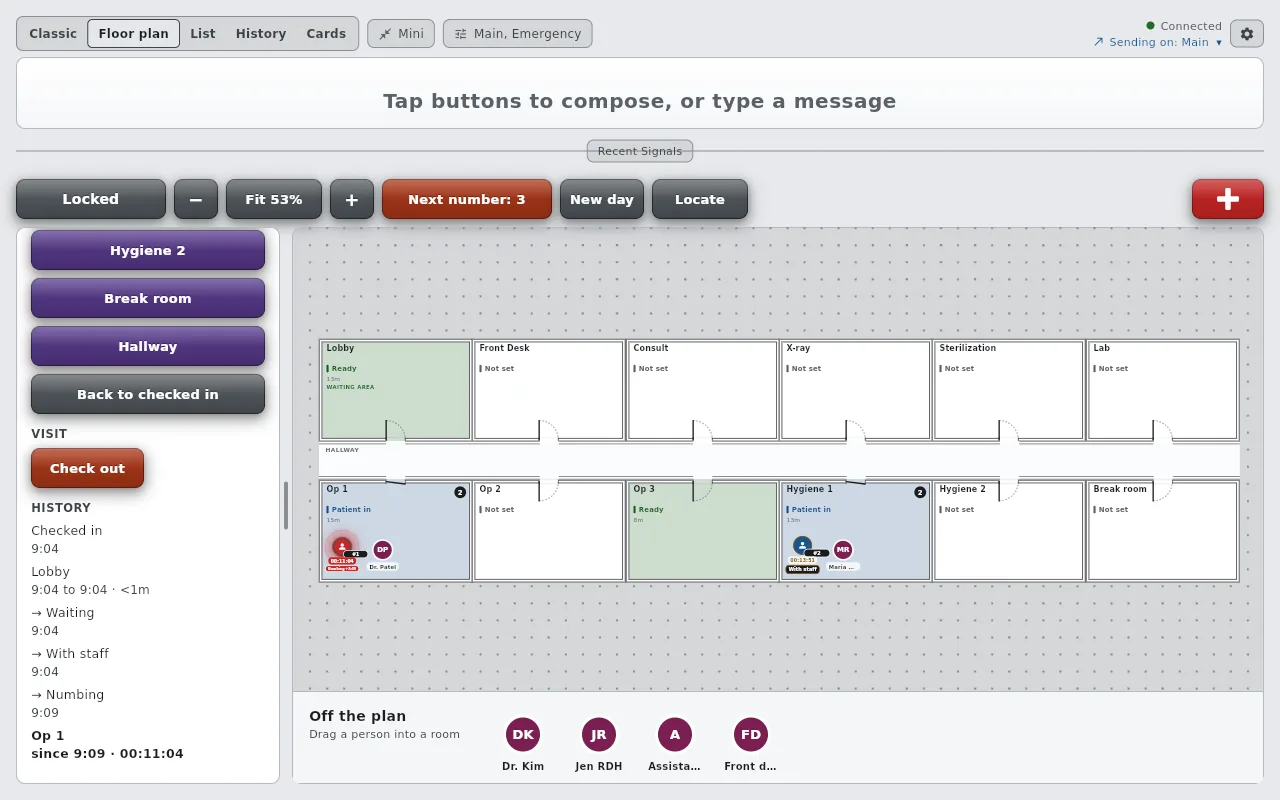
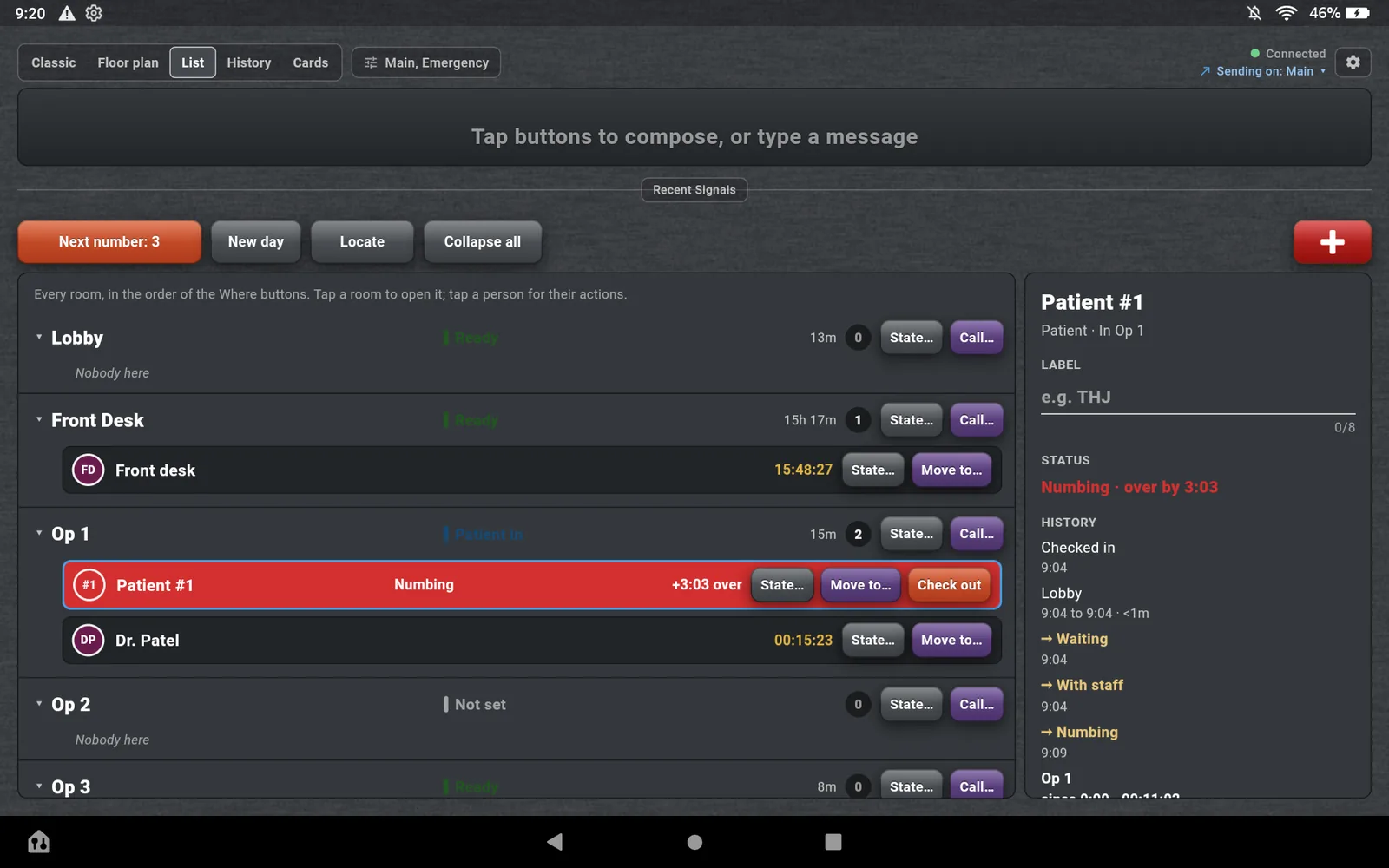
A state can carry a timer. It counts down on the patient's pill, and when it runs out the icon turns the same red as the emergency button and ripples from the center, on every screen. Nobody has to remember to check.

The List view with Patient 3's row solid red, reading Dilating, plus 0:50 over. The pane at the right reads Dilating, over by 0:50, and lists the patient's history: checked in 21:09, Waiting, Lobby 21:09 to 21:10, Dilating at 21:12, Dilating Room since 21:12.
List view. The same timer, 50 seconds over.

04 · History

The whole visit, readable afterwards.

Tap any patient and the pane lists their day: when they checked in, every room with the time they entered and left, every state change, and the clock still running on the current room. A patient who moved twice and changed state three times shows all of it in order.

Staff have the same timeline, and so does every room: who is here now, and who was here today, with times.

The Floor plan with Exam Rm 3 selected. The pane at the left is headed Exam Rm 3, Room, Tech with Patient, 5m, then Call, Who: Doctor 1 with a patient, Doctor 2 with a patient, Tech, Optician, Scribe, Front desk, then Call, What: Needed and Patient Ready.
Floor plan. Tap a room, and the call is who and why.

05 · Staff on the plan

The room is the tap. Pick who and why.

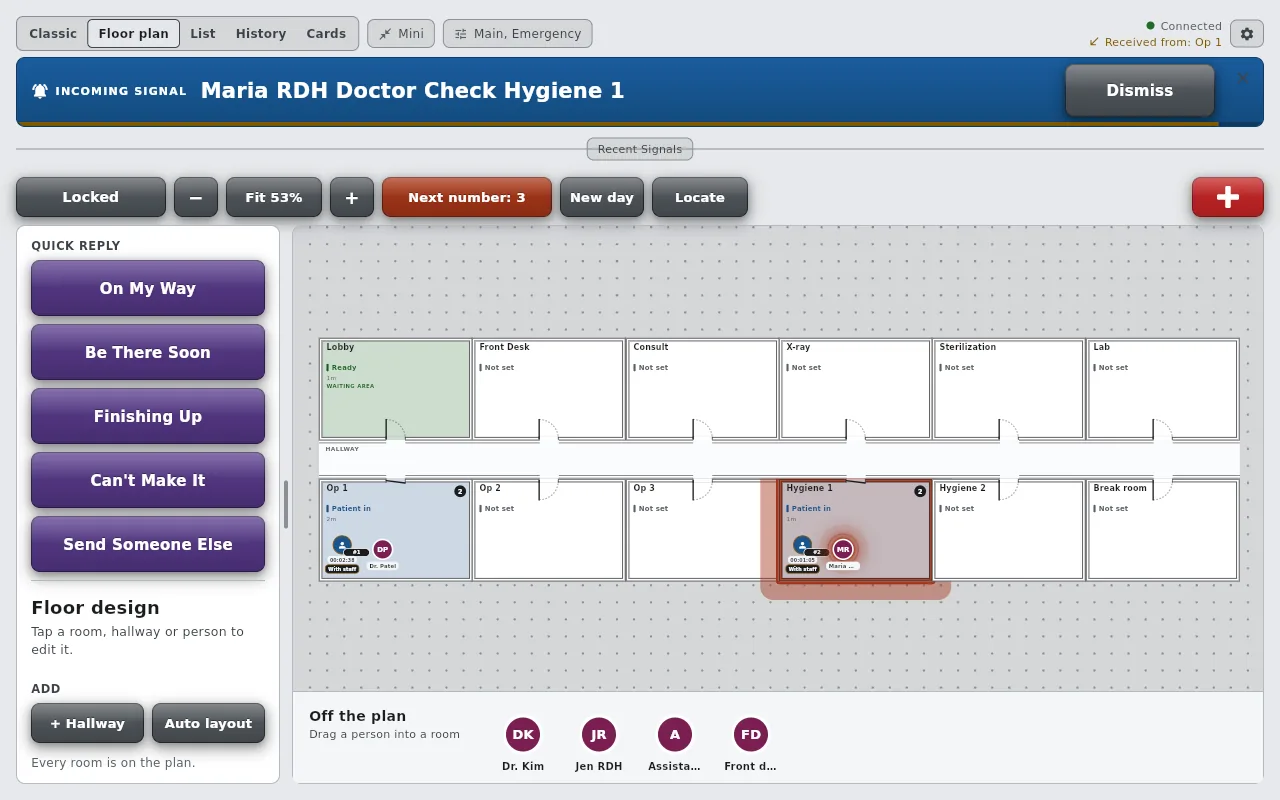
Every Who button is a person on the plan. Drag Doctor 2 into Exam Rm 4 and the icon moves, the room's count changes, and any patient in that room becomes With staff. Each person has a status from your People list, shown beside their name wherever it matters.

Tap a room and its pane opens with the call ready to compose: the room is filled in, so a page needs only who and what. The message that goes out is the same three-part signal the Classic board sends.

The Floor plan with the Locate pane open at the left: a Staff group with Doctor 1, Doctor 2, Front desk, Optician, Scribe and Tech, and a Patients group with Patient 1 to Patient 6. The Locate button in the bar is lit green.
Floor plan. Locate, staff first, then patients.

06 · Locate

Find anyone in one tap.

Press Locate and pick a staff member or a patient. On the plan, their icon glows and the bar says where they are. On the list, the row scrolls into view and its border glows red until you clear it.

It answers the question that used to send someone down the hall: where is the doctor right now, and which room did patient 4 go to.

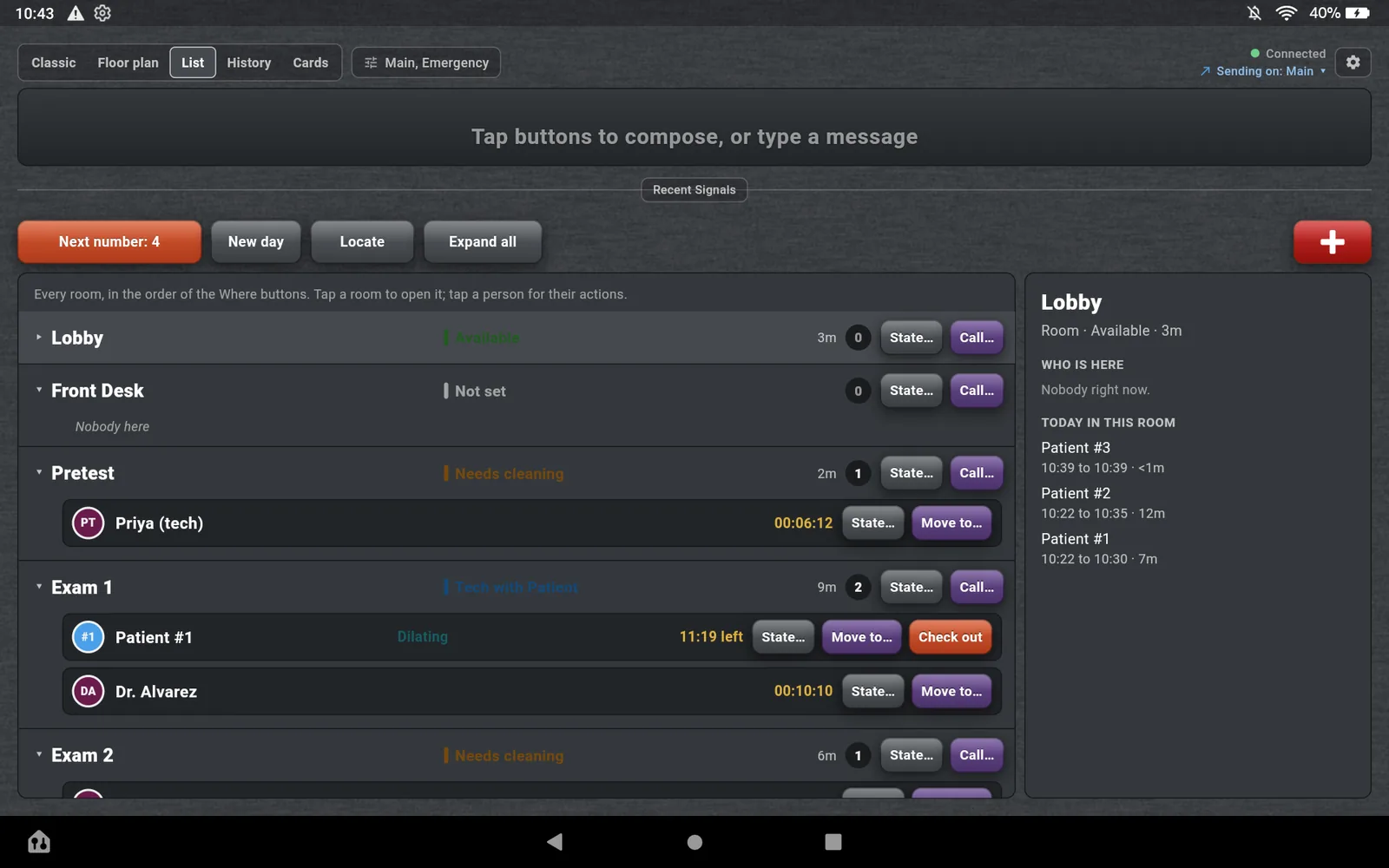
The List view with the Lobby's state chips open: Available, Tech with Patient with a timer glyph, Patient with Optician, Dilating lit green with a timer glyph, and Out of service. The pane at the right is headed Lobby and lists Who is here, Patient 6 Waiting, and Today in this room, Patients 1 to 6 with their times.
List view. A room's state words, and its day.

07 · Rooms

Rooms keep their own state and their own day.

Room states are still here: Available, Needs cleaning, Out of service, or whatever your Rooms list says, set in one tap with the time since. On the plan the room's tint follows its state, and a room state with a timer counts down the same way a patient's does.

The room's pane adds who is inside now and who was inside today, so a room's morning reads as a list of patients and times.

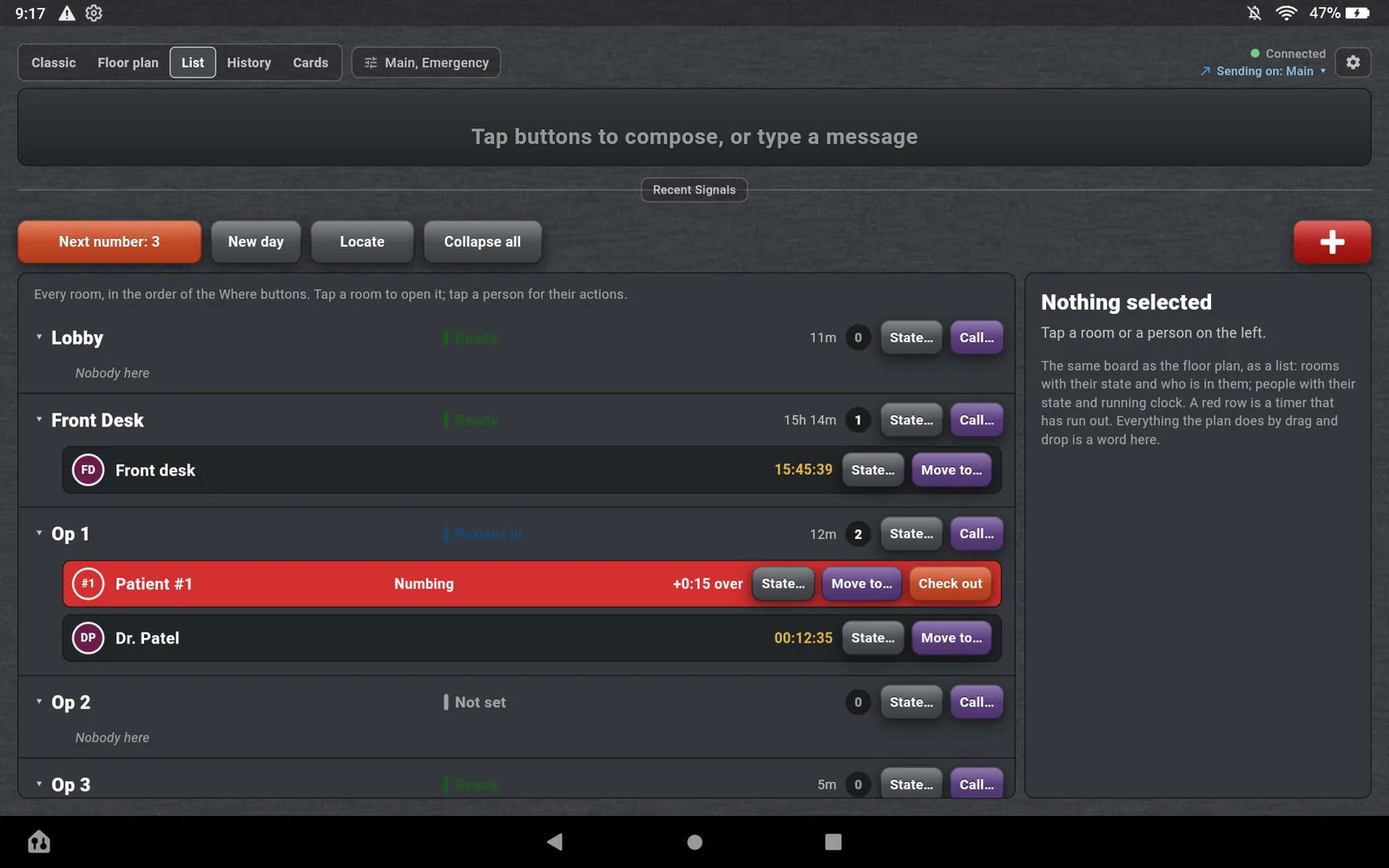
The List view on an upright Fire 7: rooms as headings with their state, age and a count, and patients and staff indented under them with State, Move to and Check out buttons. Patient 3's row is red, reading Dilating plus 1:00 over.
Fire 7, upright. The same board as words.

08 · List view

Many rooms, small screen, no dragging.

On a seven-inch tablet with twelve rooms, dragging small icons is fiddly. The List view is the same board as text: every room is a row with its state, its age and a count of who is inside, and the people under it with their state and their running clock.

Everything the plan does by drag and drop is a word here. State, Call, Move to and Check out sit on the row. A timer that ran out turns the row red. New day, Locate and Next number are in the same bar.

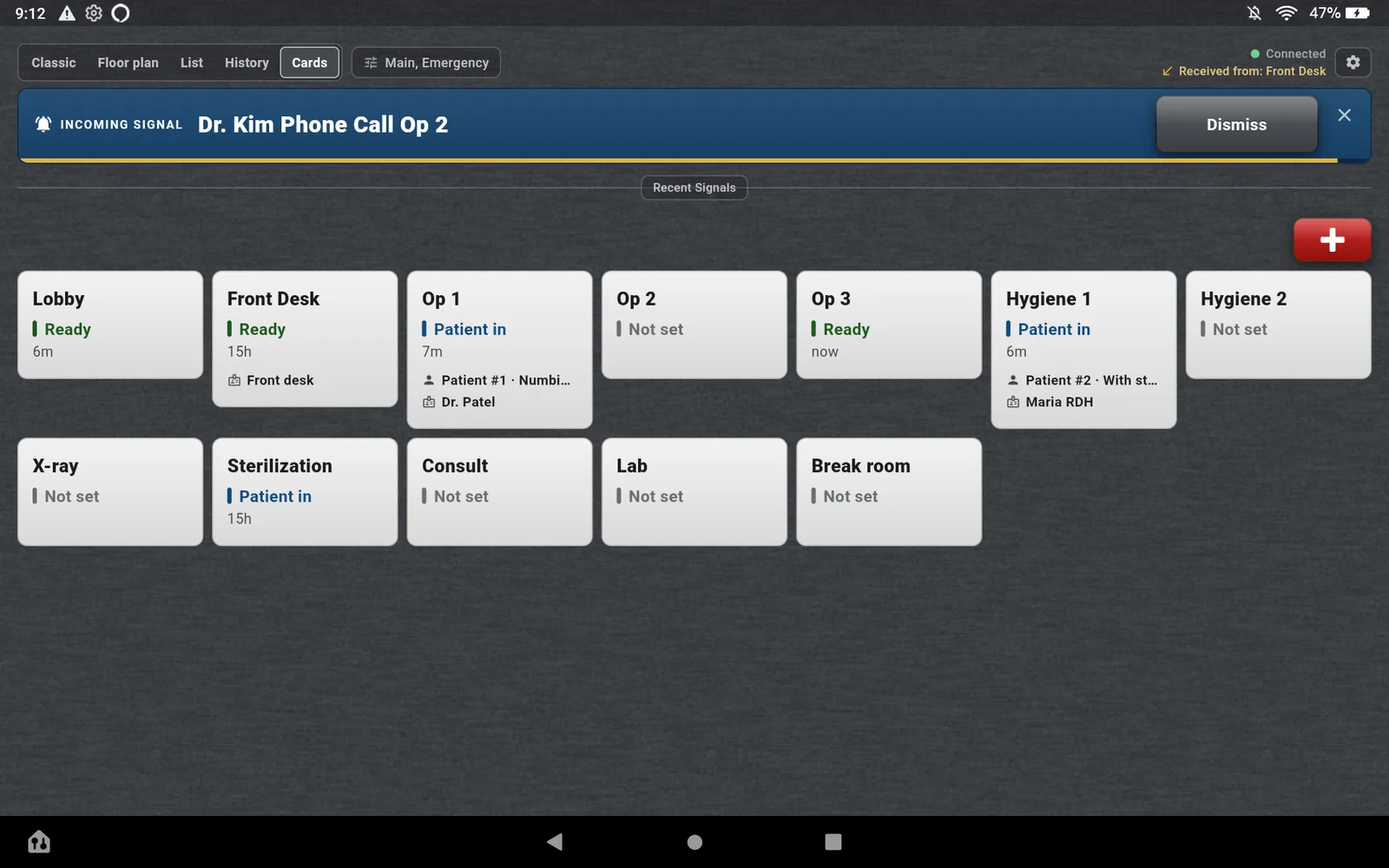
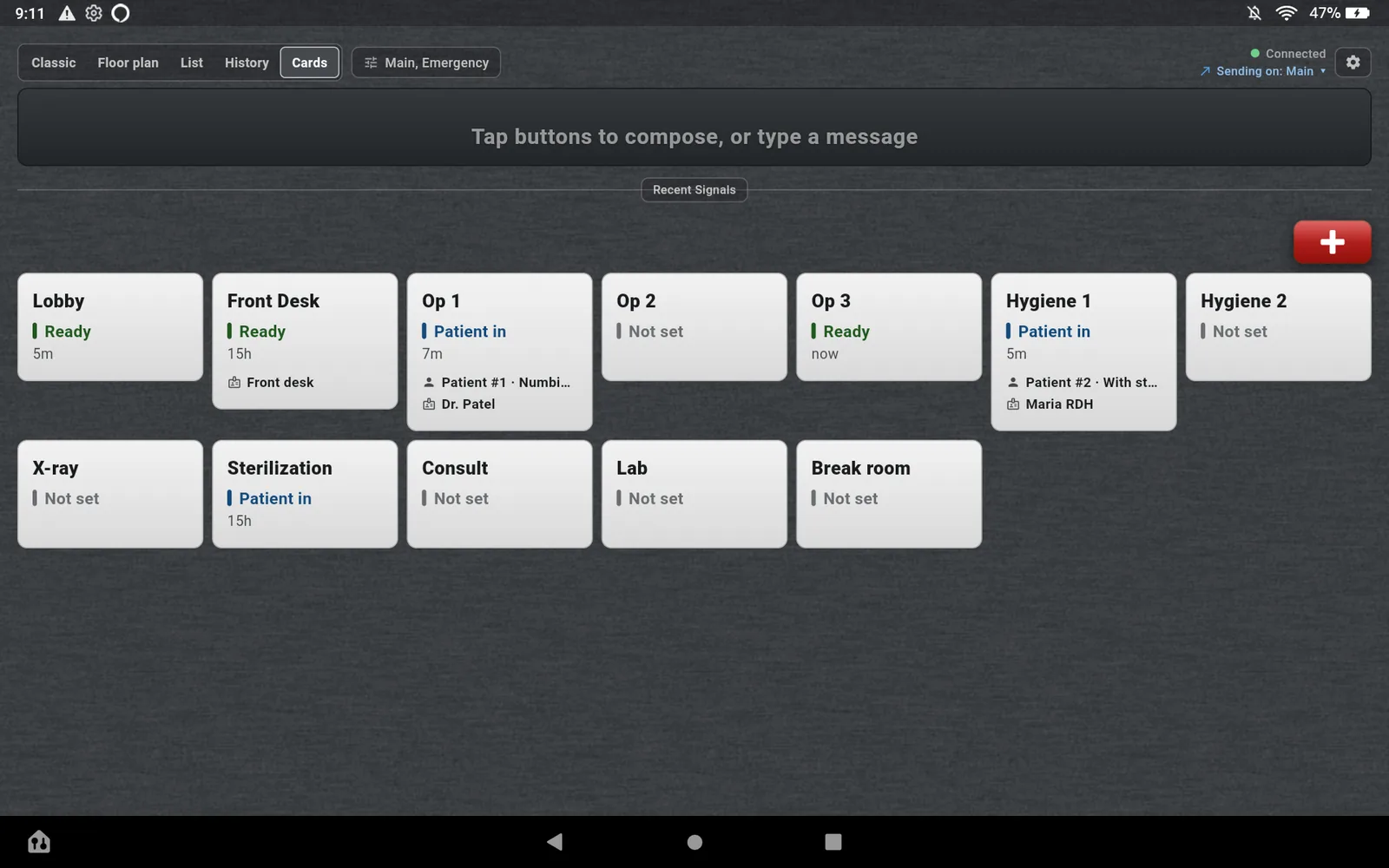
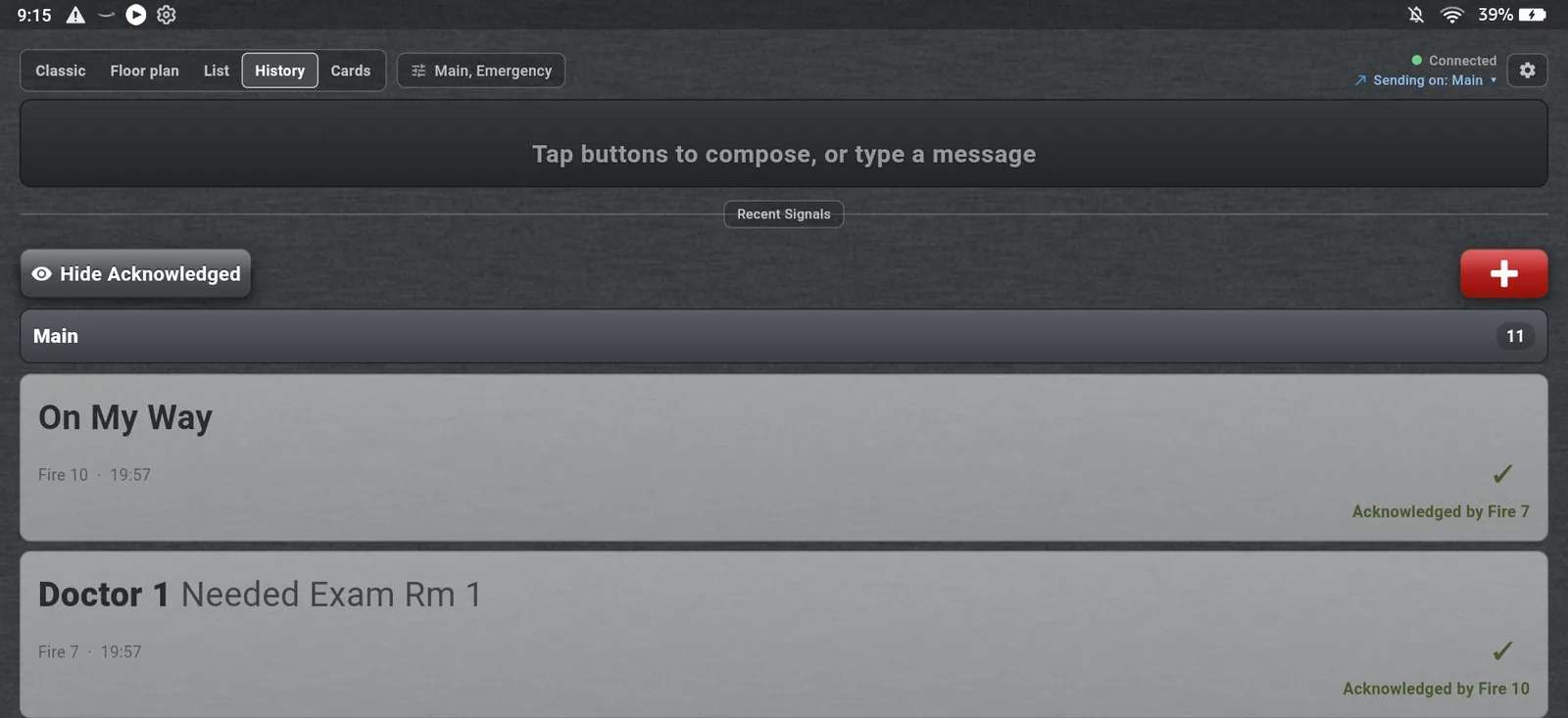
The Cards view: a card for every room with its state, its age and who is inside. Five rooms with a patient are tinted orange and show a running clock; Exam Rm 4 and 5 show Doctor 2 and Doctor 1. The History view: the day's signals on the Main channel, newest first. On My Way from Fire 10, acknowledged by Fire 7, and Doctor 1 Needed Exam Rm 1 from Fire 7, acknowledged by Fire 10.
Cards view, and the History view.

09 · Cards and History

Every room at a glance, every signal all day.

Cards shows one card per room, full height: the state, how long it has been that way, and who is in it. Tap a card to set the state. A room with a patient carries their clock.

History is the signal board from earlier versions, now a view of the main screen: every page sent on the account, who sent it, and who acknowledged it, with Hide Acknowledged to keep only the open ones.

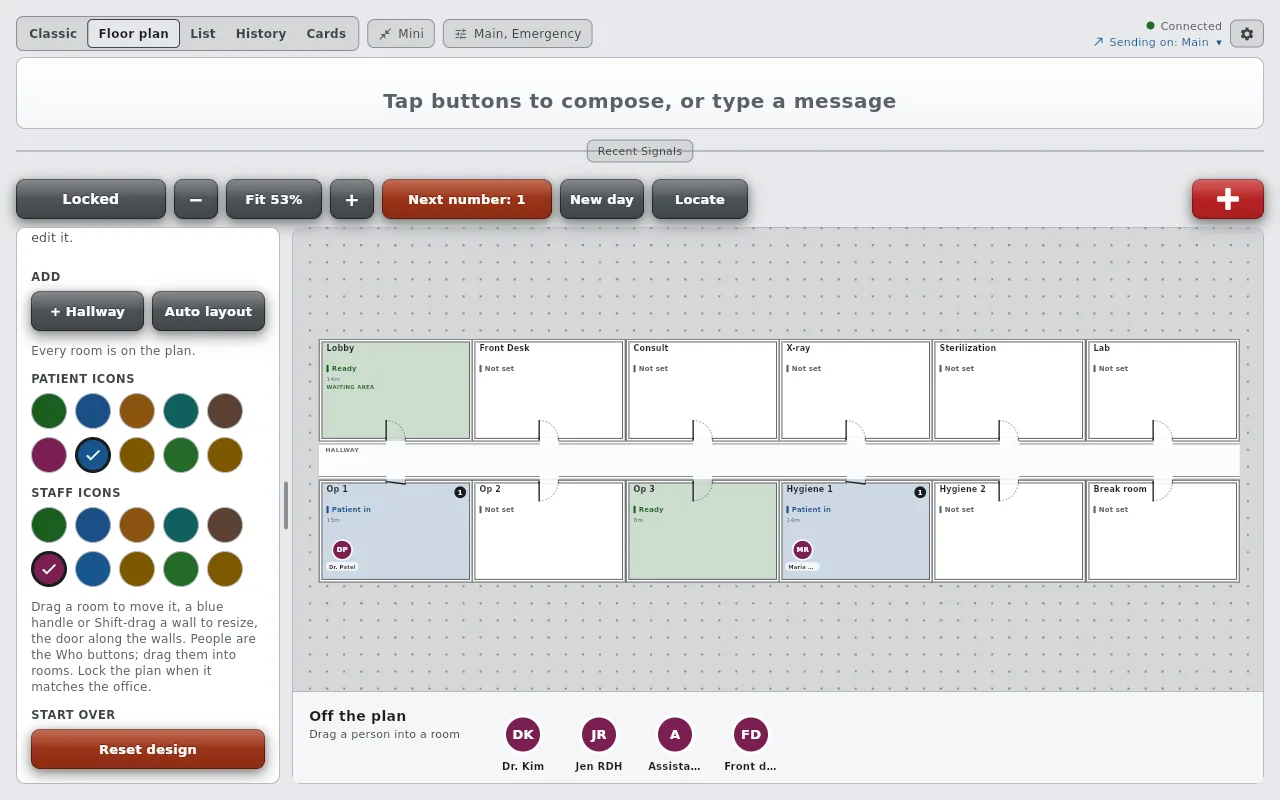
Floor design mode on the Fire HD 10: the bar button reads Floor design in green, and the pane offers Add Hallway, Auto layout, the note Every room is on the plan, and two rows of colored circles for patient icons and staff icons.
Floor design. Rooms, hallways, doors, colors.

10 · Floor design

Draw your own office in minutes.

Auto layout builds a first plan from your Where buttons: rooms wall to wall around a hallway, with the first room as the waiting area. Then unlock Floor design and make it yours: drag a room, push a wall, move or add doors, mark the waiting area, name the hallway, pick the icon colors.

Rooms cannot be moved by accident. The plan stays locked in daily use, and design mode will be limited to the roles you choose once user roles ship.

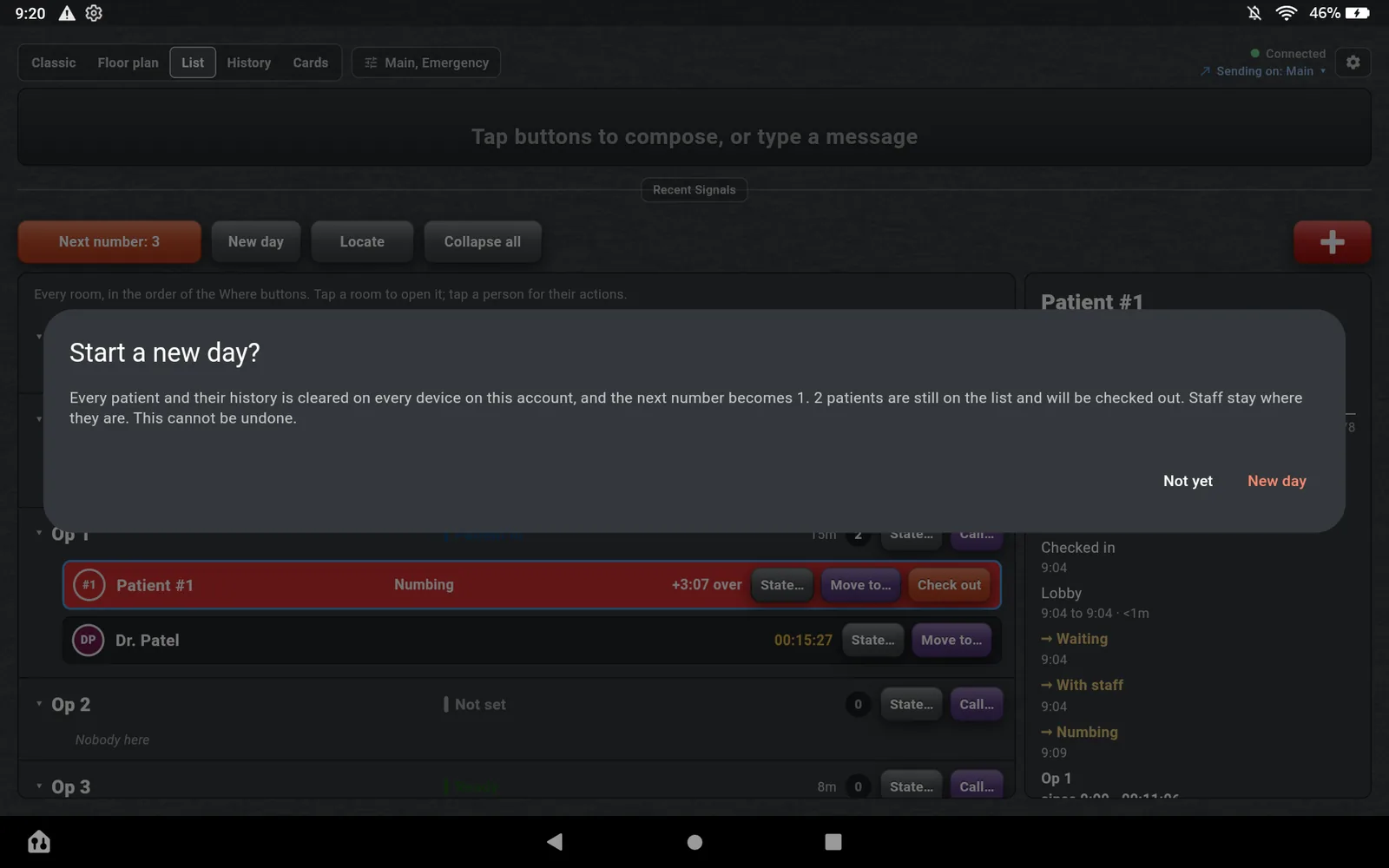
The New day confirmation on the Fire HD 10: Start a new day? Every patient and their history is cleared on every device on this account, and the next number becomes 1. 9 patients are still on the list and will be checked out. Staff stay where they are. This cannot be undone. Buttons Not yet and New day.
New day asks first, and says what it will do.

11 · New day

Start the day clean.

New day clears every patient and their history on every device and sets the next number back to 1. It tells you how many patients are still on the list before you confirm, and staff stay where they are.

Nothing about the day's signals is touched. The History view keeps them.

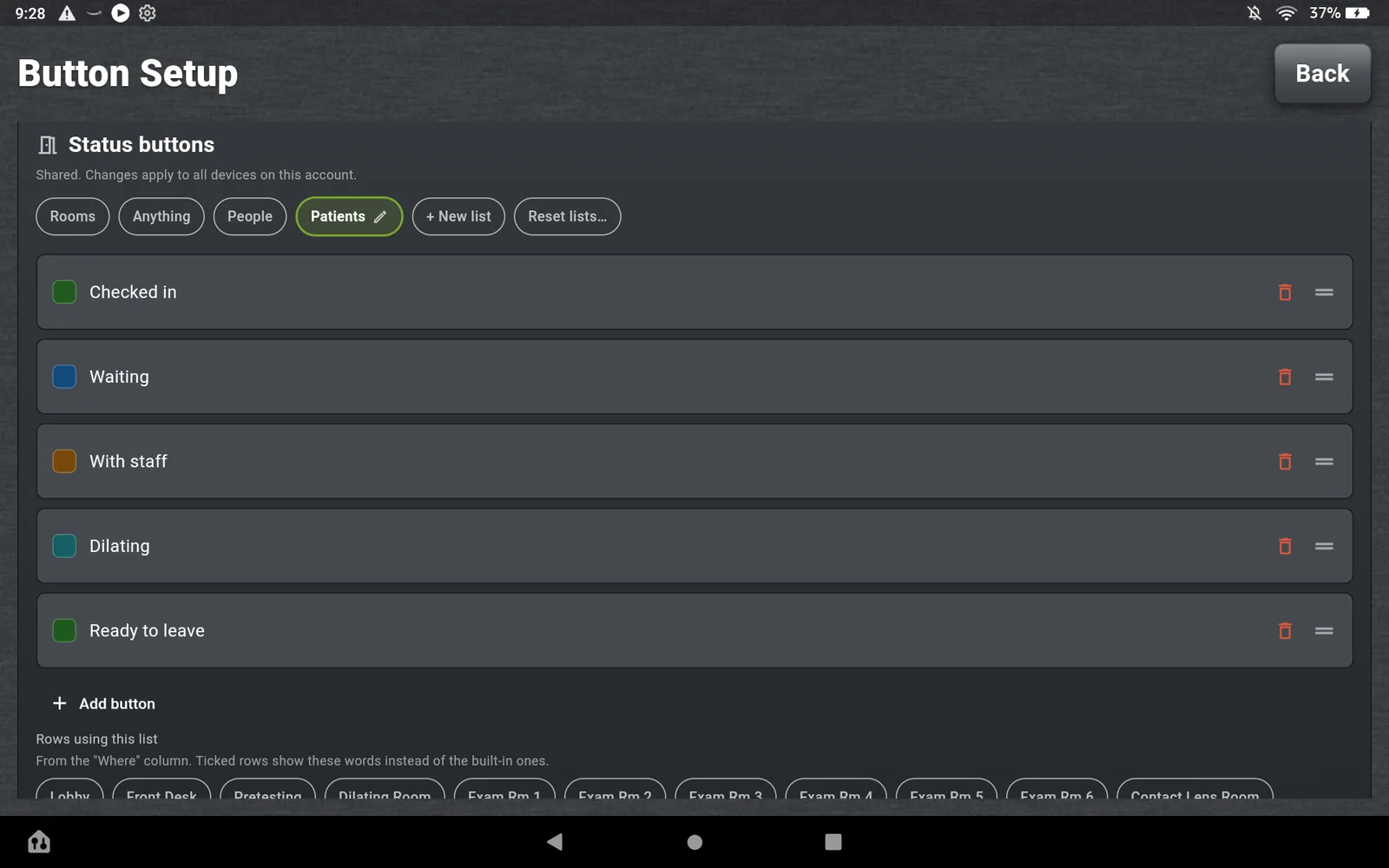
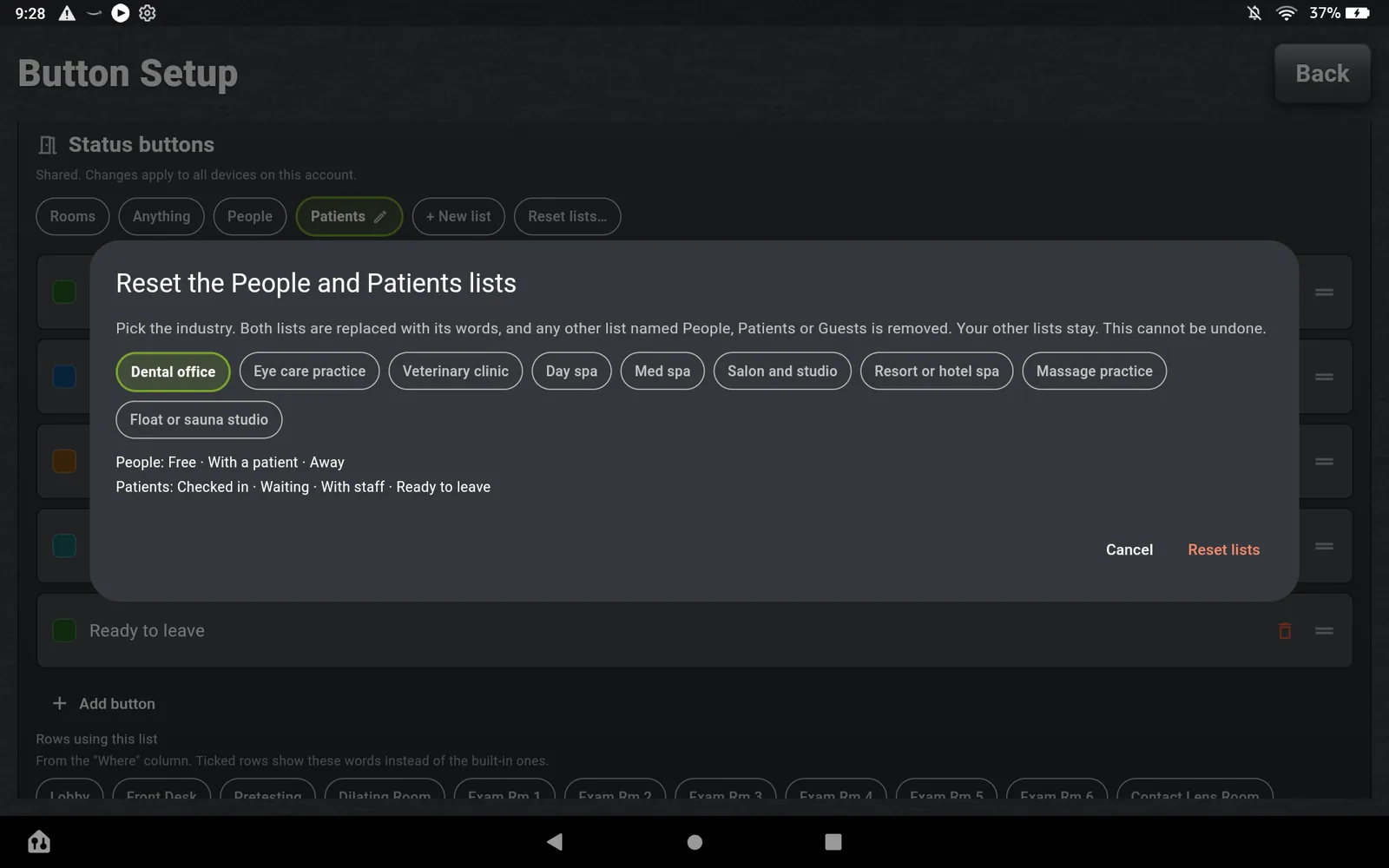
Button Setup on the Fire HD 10, the Status buttons card: chips for the Rooms, Anything, People and Patients lists, New list and Reset lists. The Patients list is open with Checked in, Waiting, With staff, Dilating and Ready to leave, each with a color swatch, and below it the Where rows that use this list. The Reset lists dialog: Reset the People and Patients lists. Pick the industry: Dental office, Eye care practice, Veterinary clinic, Day spa, Med spa, Salon and studio, Resort or hotel spa, Massage practice, Float or sauna studio. Below, the words each preset installs: People: Free, With a patient, Away. Patients: Checked in, Waiting, With staff, Ready to leave.
Button Setup. The Patients list, and Reset lists with its industry presets.

12 · Button Setup

Your words, your timers, per state.

Under Status buttons, your account has three lists. Rooms holds the states a room can be in. People holds the states a staff member can be in. Patients holds the states a patient can be in, and any of them can carry a timer, so Dilating can count twenty minutes while Waiting simply counts up.

Every Who button is assigned to a list, every delete asks first, and Reset lists restores a preset for your kind of practice in one tap if a list has grown messy.

Also in 4.0

What it changes in a dental office

The plan does not replace the page. It answers the questions people used to page about.

Where is the doctor

Locate, or a glance at the plan. The doctor's icon is in an operatory or it is not, and the room says how long.

How long has Op 3 been waiting

The patient's clock is on their pill, on the room's card and in the list. Set a timer on a state and the screen turns red when it runs out.

What happened this morning

Every patient's rooms and times, every room's patients, and every signal with who acknowledged it, without anyone writing it down.

Questions about 4.0

How do I take a number for a patient?

On the Floor plan or List view, press Next number. The patient appears in your waiting area as the next number, Waiting, with a clock running. Tap the patient to add a short label such as initials if you want one. Nothing about the patient is stored except the number, the label you typed, the rooms and the times.

How do I move a patient to a room?

On the Floor plan, drag the patient into the room. On the List, press Move to on the patient's row and pick the room. Either way every screen on the account sees the move, the room's count changes, and the patient's history records the room and the time. Check out ends the visit.

Where do I set the patient states and their timers?

In Button Setup, under Status buttons. Your account has three lists: Rooms, People and Patients. Each state in the Patients list can carry a timer, and a state with a timer counts down on the patient's pill and turns red when it runs out. Reset lists offers a preset for your kind of practice if a list gets messy.

What does New day do?

It clears every patient and their history on every device on the account and sets the next number back to 1. Staff stay where they are. It asks for confirmation first and cannot be undone. Once user roles ship, New day will be limited to the roles you choose.

Why did the Live button disappear?

It became a view. The board that used to open from the Live button is now the History view in the toggle at the top left of the main screen, beside Classic, Floor plan, List and Cards. Nothing was removed, and the toggle remembers your choice per device.

Draw your operatories this afternoon.

Auto layout builds the first plan from the rooms you already have. Thirty days free on every screen, cancel anytime.

Start 30-day free trial

Already a customer? Update your screens to 4.0, or follow one morning on the classic board.