AltoSignal / Apps
Apps and downloads
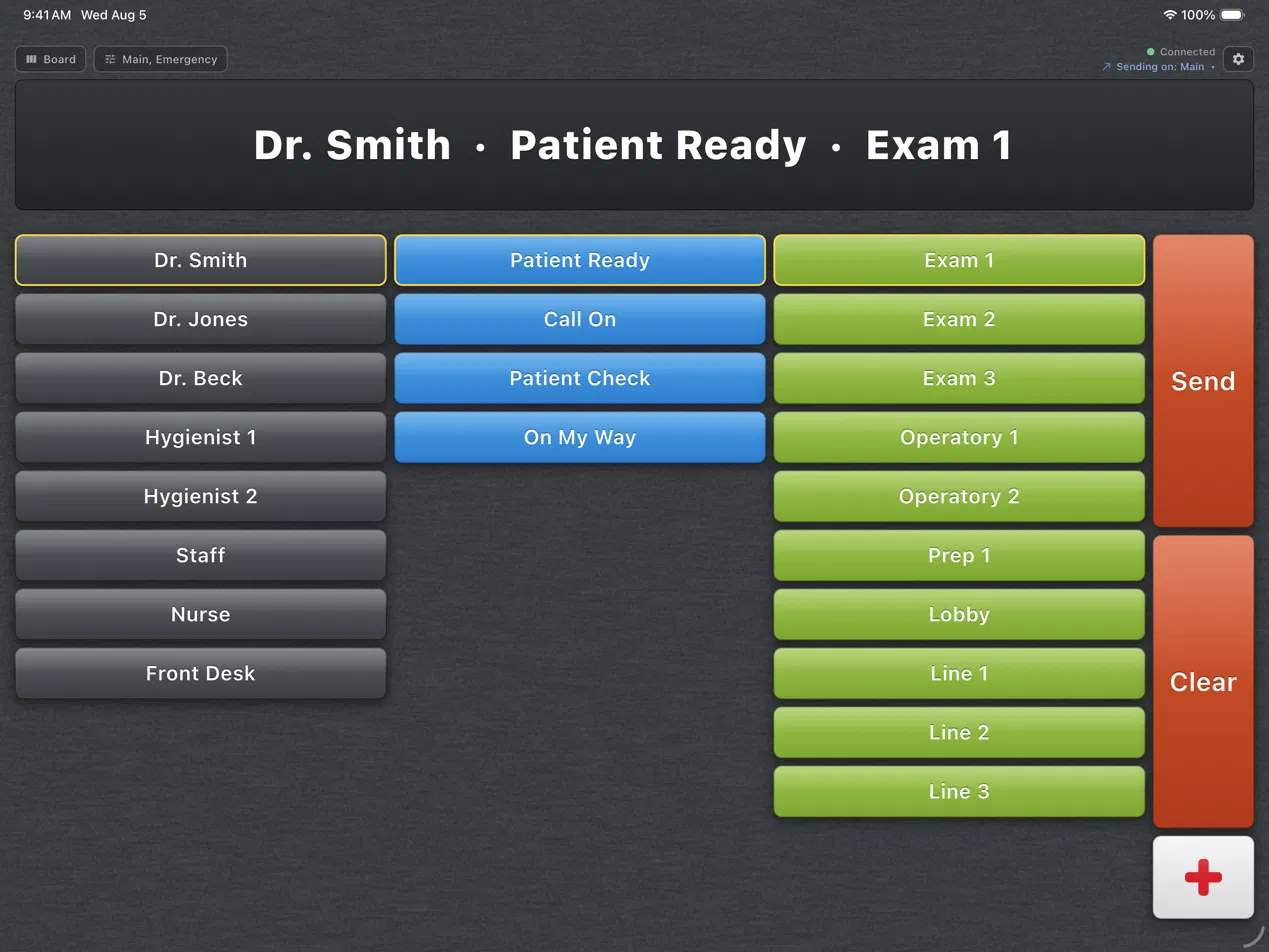
AltoSignal is a native app on iPhone, iPad, Android, Fire tablets, Windows, Mac and Linux, and it runs in any browser. Mix them in one office: every screen shares the same buttons, rooms and signals.
Mix them freely. Every device on your account shares the same buttons, rooms and signals.
App Store
One app for both. An iPad on a stand or a wall mount makes a good operatory screen, and an iPhone keeps the doctor reachable between rooms.
Get it on the App Store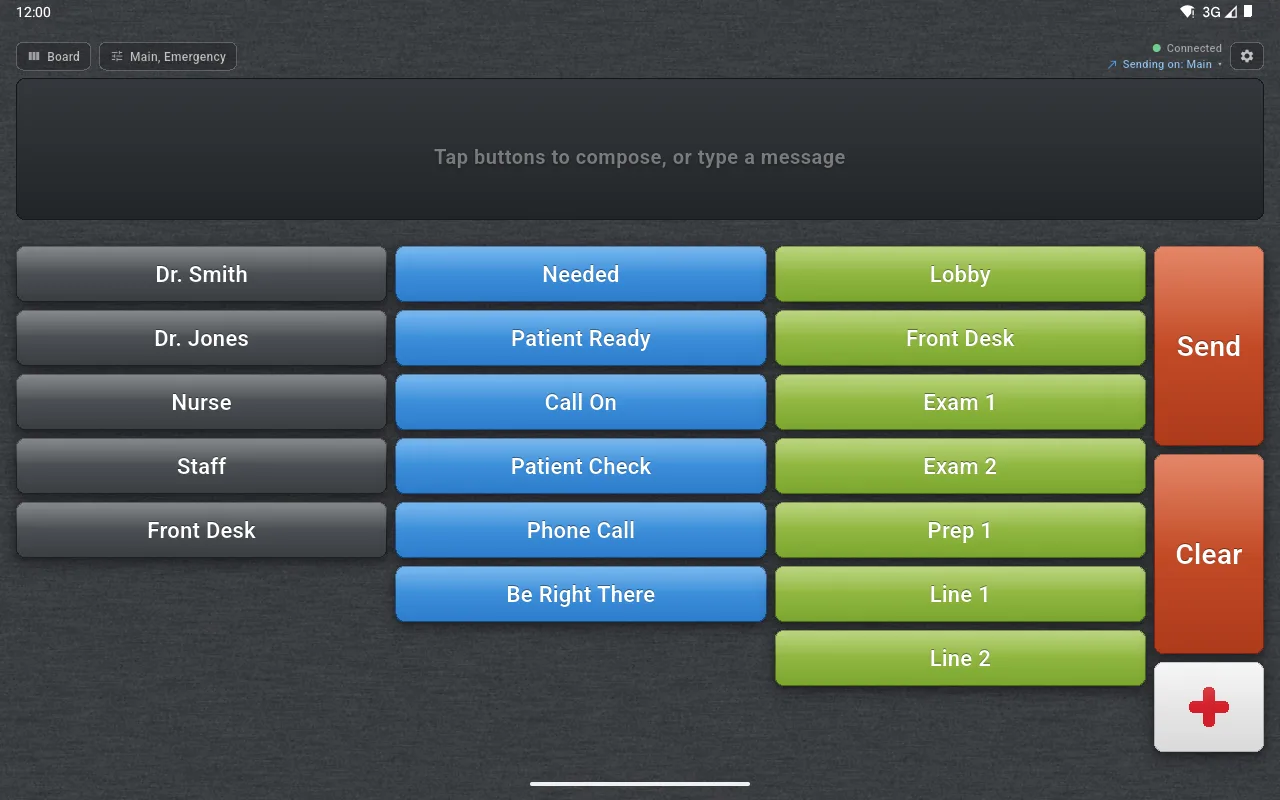
Google Play
Any recent Android tablet or phone. Tablets work well on operatory walls and at the front desk; phones suit staff who move around.
Get it on Google Play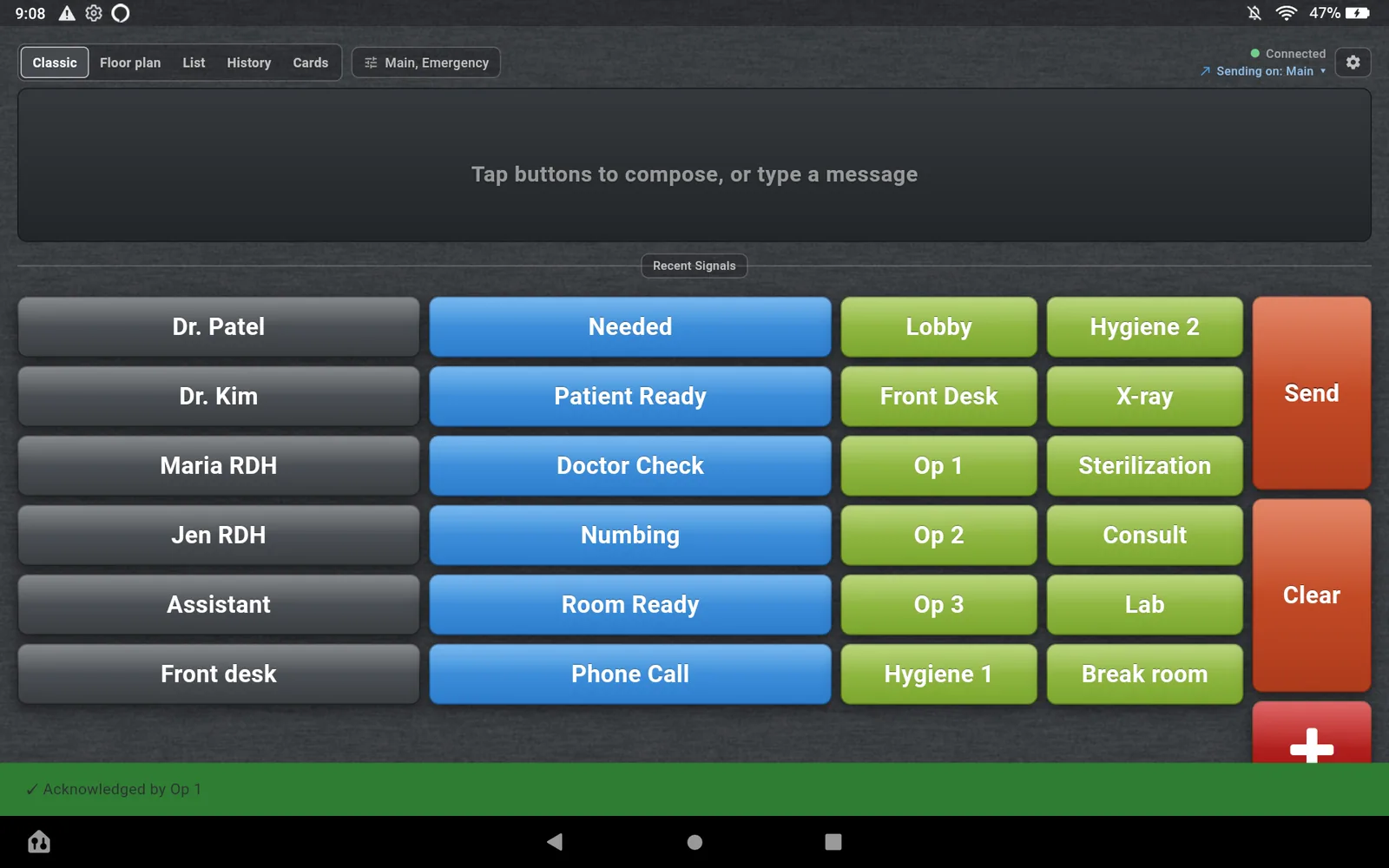
Amazon Appstore
Fire tablets are an inexpensive way to put a screen in every room, and many of our offices run on them. The app updates itself from the Amazon Appstore.
Get it on Amazon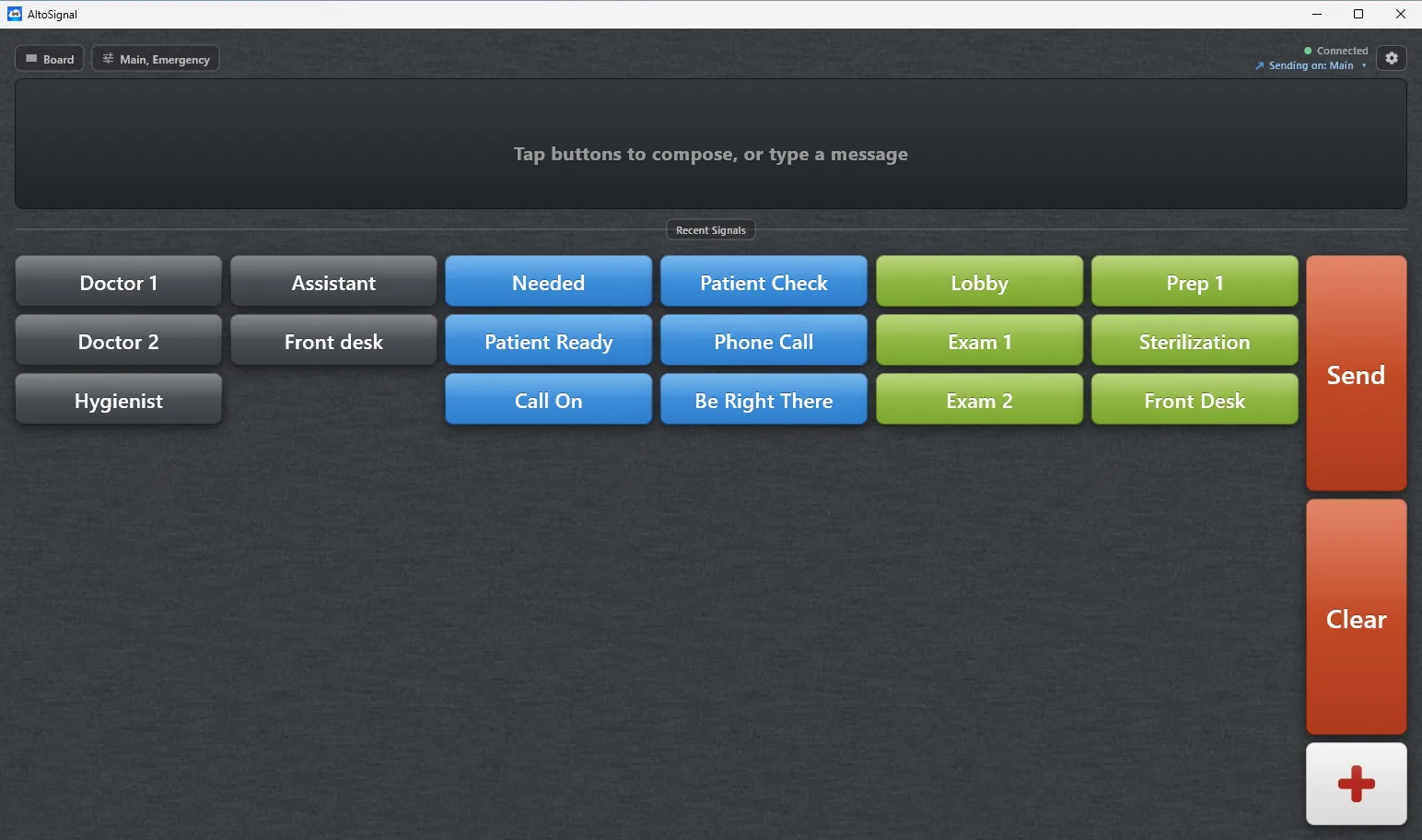
Microsoft Store
For the front desk computer and the doctor’s office. Signals can also show as Windows notifications when the window is in the background.
Get it from Microsoft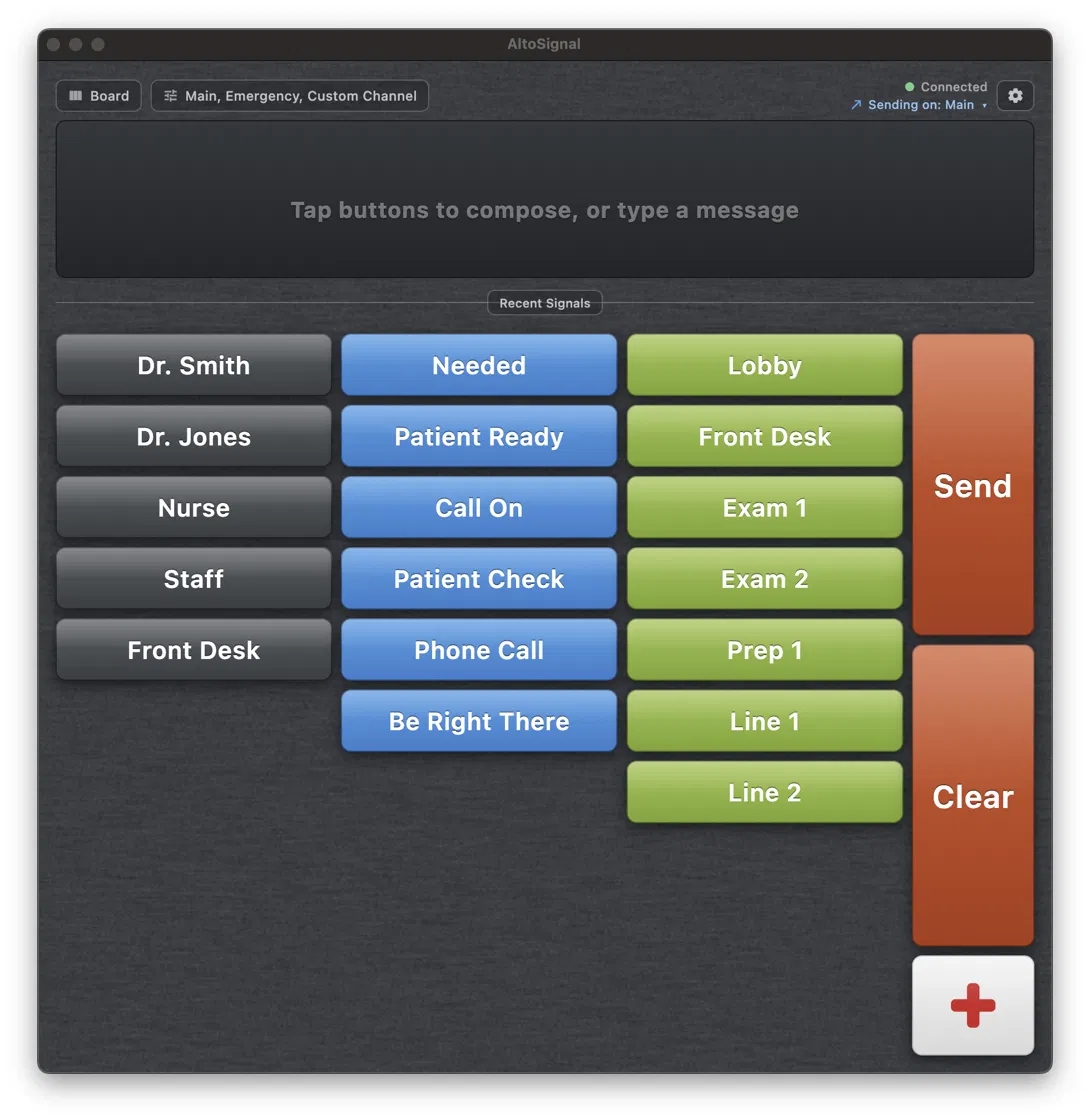
Direct download
A signed and notarized download for Apple silicon and Intel Macs. Open the disk image and drag AltoSignal to Applications.
Download for Mac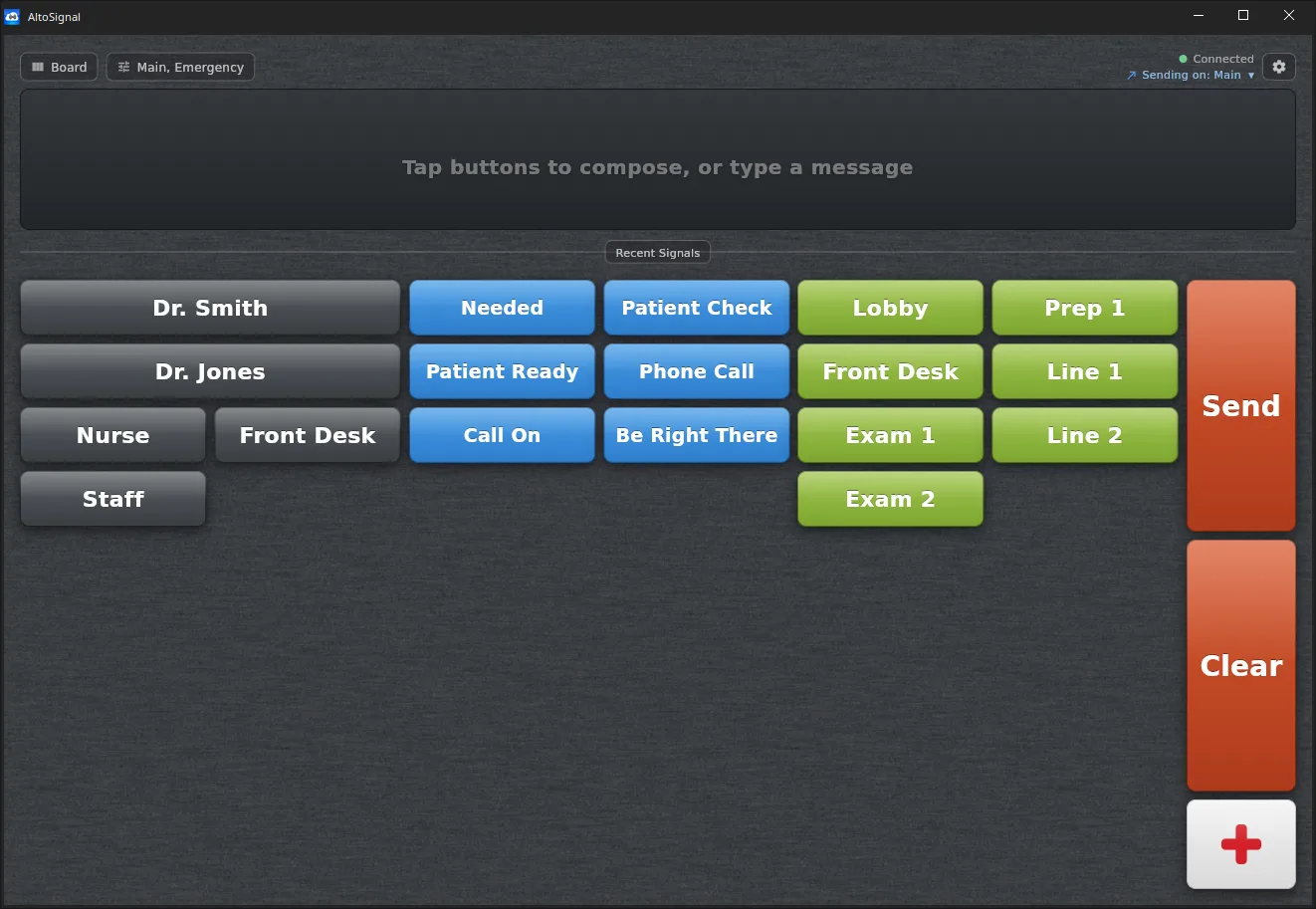
Direct download
A download for 64-bit Linux desktops, for offices that run Linux at the front desk or in the lab.
Download for LinuxFor a spare screen, or to try it before installing anything.
Open app.altosignal.com and sign in with the same login. The browser version sends and receives signals like the apps do. We still recommend the apps for every screen a team relies on: only the apps keep signaling across your office network if the internet drops. How that works.
About a minute per device.
Use the links above. Nothing needs installing on a server or a clinic computer.
The screen picks up your buttons, rooms and channels at once. Or sign in with a personal login.
Call it Op 2 or Front Desk, and every page it sends says where it came from.
Shopping for tablets? The setup guide covers mounts, power and Wi-Fi, and our spa site has a tablet shopping list that suits a dental office just as well.
Native apps for iPhone and iPad (App Store), Android phones and tablets (Google Play), Amazon Fire tablets (Amazon Appstore), Windows (Microsoft Store), and Mac and Linux (direct downloads), plus a browser version at app.altosignal.com. Every device on an account shares the same buttons and signals.
No. An office can run Fire tablets in the operatories, the Windows computer at the front desk and an iPhone for the doctor, all on one account.
Yes. The apps are free from every store; you pay per device through your AltoSignal account after a 30-day free trial.
The apps, wherever a team relies on the screen: only the apps keep signaling across your office network if the internet drops. The browser version is handy for a spare screen or a quick sign-in.
30 days free, no credit card. Install on one tablet and one computer and send your first signal in minutes.
Start 30-day free trial