Guide · Team logins
Invite your team by e-mail and each person signs in to AltoSignal with their own address and password. Every page shows who sent it, members cannot change the buttons you built, and when someone leaves you remove one name instead of changing the password on every screen.
Five things that change the day you turn it on.
A page and a reply carry the screen and the person: Exam 2 · Maria Lopez answered On My Way, not just "Exam 2".
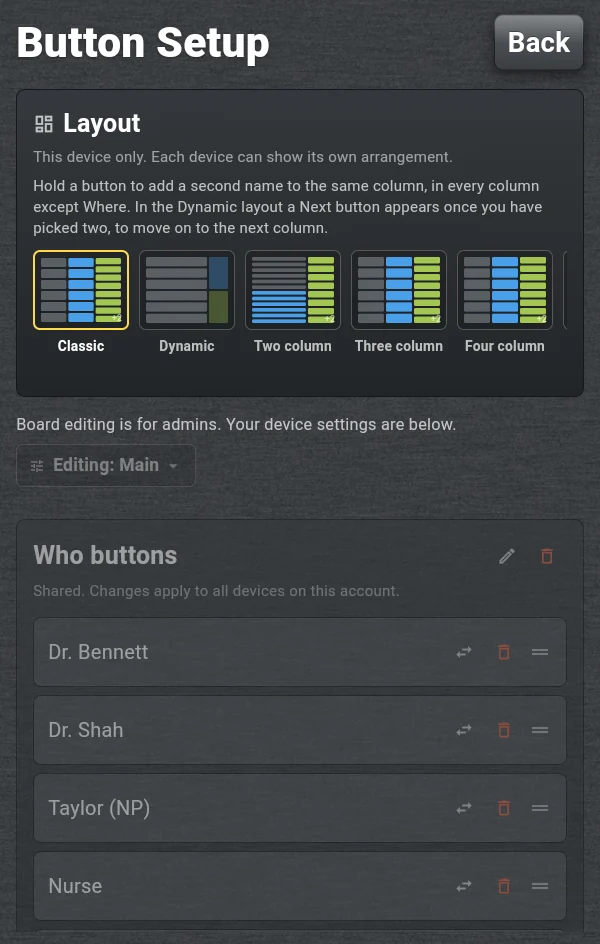
Members send and answer pages and set up their own screen. Buttons, rooms, channels, quick replies and the floor plan stay with the owner and admins.
An office manager can run the team and the board as an admin without seeing the card on file or the plan.
No more changing the shared password and signing every screen in again.
The practice login your screens use today keeps working. Invite one person or the whole team, and move people over at your own pace. Logins are included: AltoSignal is priced per device, not per person.
About two minutes for you, and two for them.
Sign in at altosignal.com/account with the practice owner's e-mail, the login you used to sign up. Below Active devices is a card called Team. It lists everyone on the account and their role.
The owner and admins see Invite someone. Members see the list and who to ask.
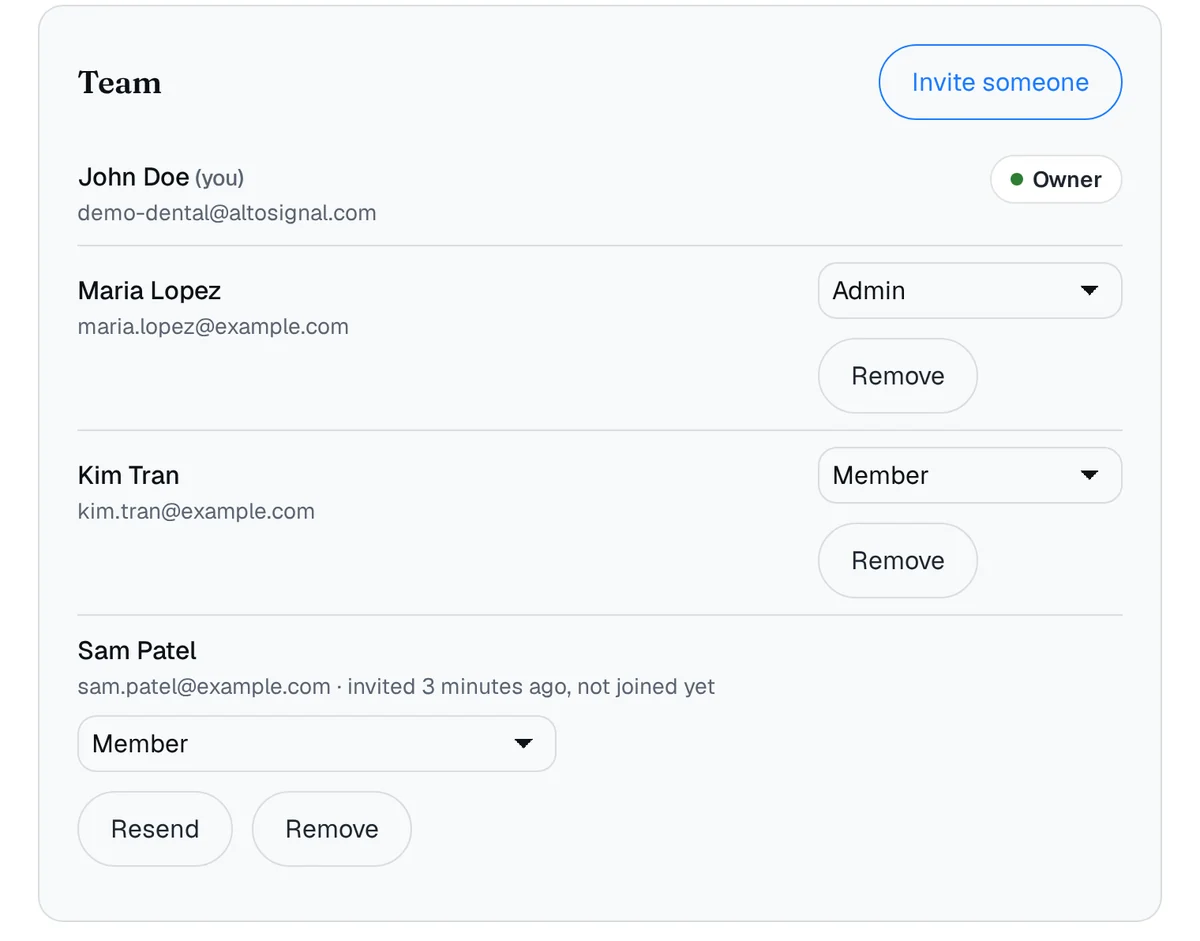
Tip: the app names people from their e-mail address, so maria.lopez@yourpractice.com shows as Maria Lopez on every page she sends.
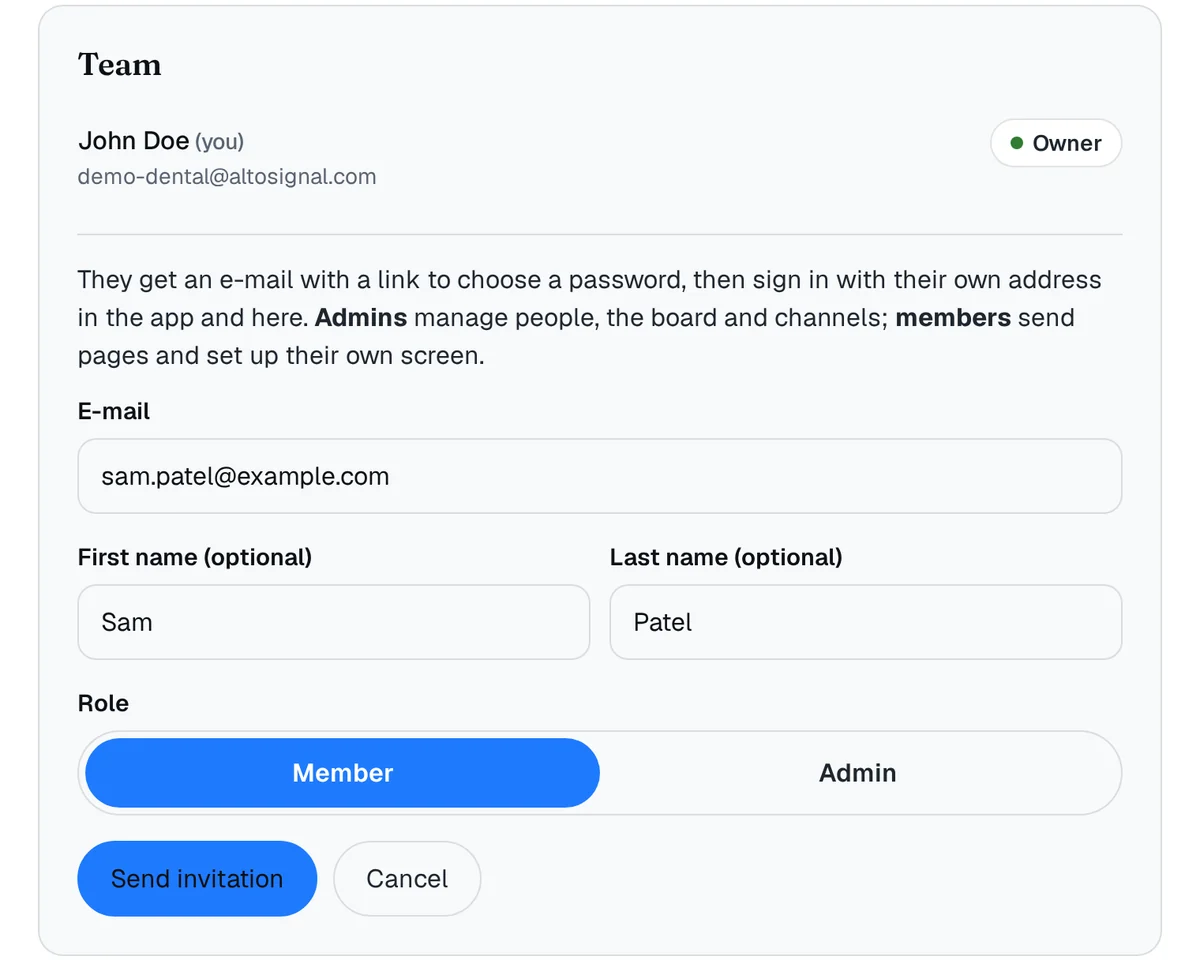
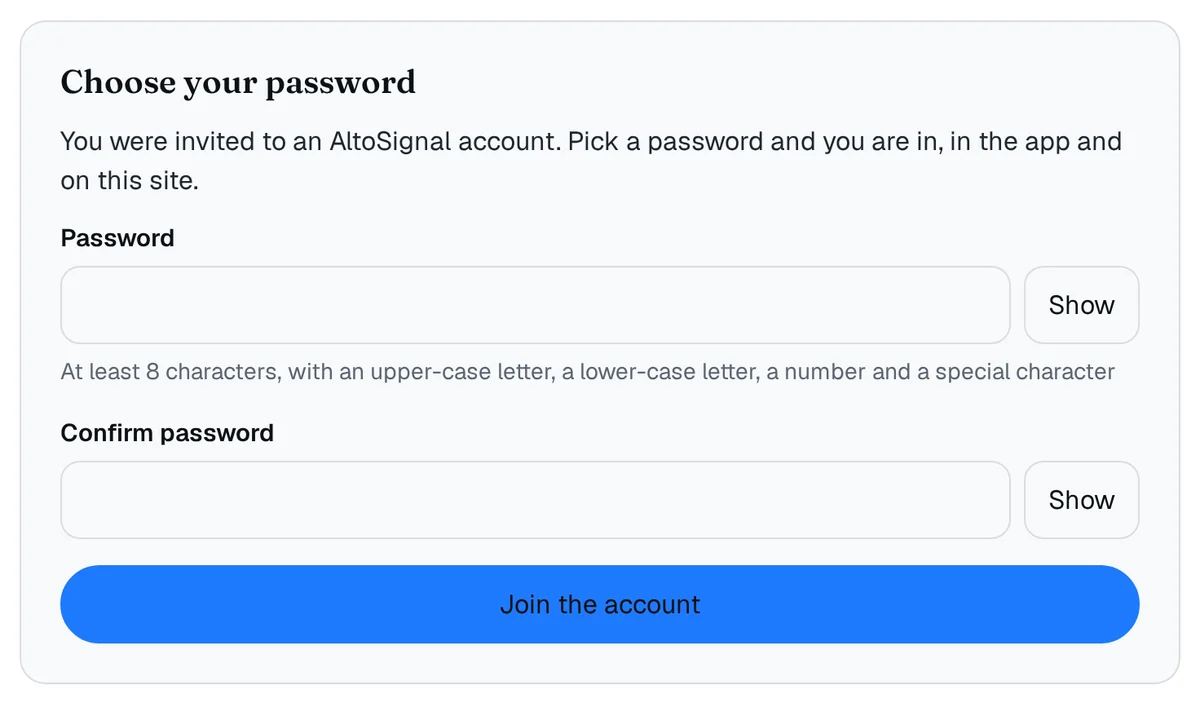
They get an e-mail, "You've been invited to your practice on AltoSignal". They press Set your password and join, choose a password, and press Join the account.
The link works once and for 7 days. If it expired or landed in spam, press Resend next to their name on the Team card.
On their tablet, phone or computer, they open the AltoSignal app and sign in with their own e-mail and the password they just chose.
If that screen is signed in with the practice login, sign it out first: the gear at the top right, then Account, then Sign out at the bottom. The Account screen shows who is signed in and their role.
No app yet? Get AltoSignal for iPad and iPhone, Android, Fire tablets, Windows, Mac or Linux.
Everything stays on the Team card:
The owner is the login the practice signed up with. That role is not changed from the Team card; write to us if it needs to move to someone else.
Pick the smallest role that does the job. Most of the team are members.
| Member | Admin | Owner | |
|---|---|---|---|
| Send, answer and acknowledge pages | Yes | Yes | Yes |
| Choose which channels their screen listens to and sends on | Yes | Yes | Yes |
| Their own screen's layout and device settings | Yes | Yes | Yes |
| Change buttons, rooms, quick replies and room timers | No | Yes | Yes |
| Add channels, design the floor plan, start a New day | No | Yes | Yes |
| Invite people and change roles | No | Yes | Yes |
| Plan, devices, card and invoices | No | No | Yes |
A member who opens a setting they cannot change sees one plain sentence, such as "Board editing is for admins", and everything on their own screen stays theirs to set.
No. The practice login your screens use today keeps working, and you can mix the two: a shared login on the wall screens and personal logins for the people who move between rooms. Move people over at your own pace.
No. AltoSignal is priced per device, the screens that show pages, not per person. Invite as many people as you like.
Open the Team card and press Remove next to their name. Their e-mail address no longer opens your account, and nobody has to change a shared password on every screen.
Invitation links work once and for 7 days. Press Resend next to the person's name on the Team card and they get a fresh link.
Today one e-mail address belongs to one AltoSignal account. Someone who works at two practices that each have their own account uses a different e-mail address for the second one. If your locations share one account, one login covers all of them.
Not yet. Single sign-on for larger groups (Microsoft Entra ID, Google Workspace, Okta) is planned. If you need it, write to sales@altosignal.com and tell us which directory you use.
Have your team sign in with the AltoSignal apps on their tablets, phones and computers. That is where the member limits live. The older browser version at altosignalapp.com predates roles and does not know about them.
Sign in to your account and open the Team card. New to AltoSignal? Try it free for 30 days on the screens you already own.
Open my accountStart a 30-day free trial · Questions? Ask us and a person answers by e-mail.
